Pop-up | resolution map layer > Change Resolution Values (Layers window) |
The Change Resolution Values command is used to manually change the resolution values of selected tiles in a variable resolution (VR) surface. By default, this command updates the resolution values of tiles only, but it is possible to also recompute interpolated nodes in the selected tile while changing the resolution.
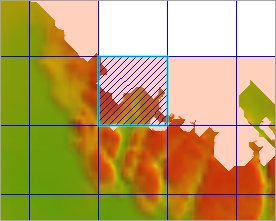
Tiles that have been manually adjusted will display with diagonal hatching when the Resolution Map layer is turned on in the display.
Related commands:
• New Variable Resolution Surface
• Export Variable Resolution to BAG
• Import Variable Resolution from BAG
Interface
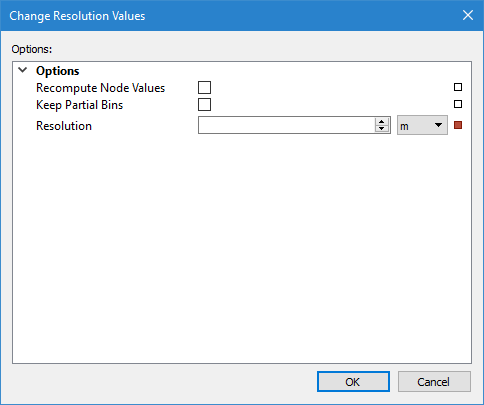
The Changes Resolution Values command uses the following dialog box.
Option | Description |
Recompute Node Values | Select this option to recompute any interpolated nodes in the selected tile based on the new resolution value. If this option is not selected, only the resolution value will be adjusted; the node values will remain the same. This option is only available for VR surfaces created using either the New Variable Resolution Surface command or the CreateVRSurface and PopulateVRSurface processes. |
Keep Partial Bins | Select this option to retain partial bins when adjusting the tiles. Tile edges will display with more even spacing when this option is disabled. |
Resolution | The resolution value to assign to the selected tiles. 1. Use the Up and Down arrow buttons to select a value or click in the field and type a value. 2. Select the unit of measure from the drop-down list. |
Status Indicators
| Each option has a status indicator box beside the field. If the field has not been populated, or is populated with a default value, the box is coloured white. When a value is entered or a default value is changed, the status indicator box changes to grey to indicate it is no longer in the default state. If an option is mandatory and has not been populated, the status indicator box is coloured red. Fields can be returned to their default state by clicking the status indicator box and selecting “Reset”. |
Procedure
1. Select the Resolution Map layer of the relevant VR surface in the Layers window.
2. Using a selection tool, select the tiles in the Display window for which you want to change the resolution values.
3. Right-click the Resolution Map layer and select Change Resolution Values.
The Change Resolution Values dialog box is displayed.
4. Enable any necessary options.
5. Enter a Resolution value.
6. Click OK.
The resolution map is updated with the new resolution value for the selected tiles.
