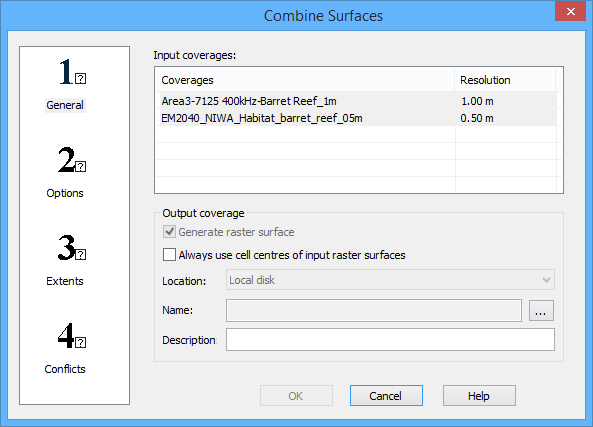
In step 1: General of the Combine Surfaces wizard, you must define the input coverages and the output location.
Interface
The following is the first step of the Combine Surfaces wizard.
Option | Description |
Input coverages | The coverages to be included as input for the combined surface. By default, all open coverages in a supported format are selected as input. 1. Press and hold the <Ctrl> key and click the coverages to be combined. |
Generate raster surface | Generate the output coverage as a raster surface when a point cloud is selected as an input coverage. This option is disabled if raster surfaces are selected as the input coverages. |
Always use cell centres of input raster surfaces | Use cell centre positions of nodes in the generation of the output coverage when generating a raster surface. If left unchecked, true positions will be used. If the contributor surfaces do not contain at least one raster surface, this field will be disabled. |
Location | The location for the output coverage when combining database surfaces. By default, the resulting surface is placed on the source database, but can be saved to the local machine if desired. This option is only enabled if combining database surfaces. 1. Select an option from the drop-down list. Because bathymetry is added to the database, and this cannot be undone via the Undo command, the application will not allow this command to be run if there are any previous unsaved changes. If there are unsaved changes, a message will be displayed prompting you to save your changes before continuing. |
Name | The name to assign to the output coverage. If saving to the local computer, this field is also used to select the location for the output. 1. Click the browse button (...) then define a name and location for the output coverage. |
Description | A brief textual description of the output coverage. |
Procedure
1. Open the surfaces that you wish to combine.
2. Select the Combine command.
The Combine Surfaces dialog box is displayed.
3. Select the surfaces to be combined.
4. Define the output location for the combined surface.
5. Define any other necessary options.
6. Select step 2 on the left and continue to Combine Surfaces: Step 2 Options.