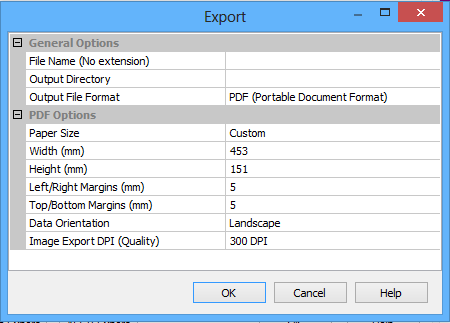
Use the Image Export button in the statistics results dialog box to export an image of the Compute Statistics histogram to:
• PDF (Portable Document Format)
• PS (PostScript)
• SVG (Scalable Vector Graphics)
• TIFF (Tagged Image File Format)
The Export dialog box displays general and specific options for the above formats. When you select a specific format, options for that format are displayed in the lower section of the dialog box.
Export options:
File Name | By default, the field is populated with a name combining the names of the surface and the attribute layer that was computed ( |
PDF and PostScript options | |
Paper size | Set the page size of the exported file. |
Width/Height | Set the width and height of the histogram in the resulting file. |
Data Orientation | Set the orientation of the histogram in the resulting file. Portrait is a vertical position; Landscape is a horizontal position. Landscape is selected by default. |
Margins | Set the width of the area between the histogram and the edge of the file. The default is 5mm. |
Image Export DPI (Quality) | Set the resolution used to export the histogram. The higher the resolution, the better the quality of the image when zoomed in. If the file will be used in the electronic form with the image being zoomed in tightly, a higher resolution is recommended. If the file will simply be printed, a smaller resolution is adequate. |
SVG format options | |
Width/Height | The width and height of the histogram in the resulting file. |
Image Export DPI (Quality) | Set the resolution used to export the histogram. The higher the resolution, the better the quality of the image when zoomed in. If the file will be used in the electronic form with the image being zoomed in tightly, a higher resolution is recommended. If the file will simply be printed, a smaller resolution is adequate |
TIFF format options | |
Image Resolution | The resolution (quality) at which to export the image. The higher the resolution, the closer the image can be zoomed, but the larger the file. |
Width/Height (Pixels) | Set the width and height of the resulting image in pixels. These fields are controlled by the resolution of the image. As the DPI is increased or decreased, so is the number of pixels. |
Image Depth | Set the number of values applied to each pixel in the image (one value for each colour, plus one for transparency if using 32 Bit). If you would like a transparency setting applied to the background colour, the 32 Bit (RGBA) option must be selected. |
Background Colour | The colour displayed in the background of the histogram. The default is black. |
Background Alpha | (This option is only available when the Image Depth is set to 32 Bit RGBA). Set the degree of transparency applied to the background colour. The default setting is zero transparency. |
Compression | Compress the resulting image file during export to decrease the file size. This option is only available when using the TIFF format. There are various compression methods available, each of which performs differently. By default, LZW is used. |
Related commands:
Procedure
1. Click Image Export in the Compute Statistics histogram.
2. In the Export dialog box, define the settings for exporting the image to the desired format.
3. [Optional] Type a File Name for the image file.
4. In the Output Directory field click Browse and select a location for the exported file.
5. Select the Output File Format from the drop-down list.
6. [Optional] Enter or select a value for the options as needed.
7. Click OK.
8. Click OK.
The image file is saved to the specified location.