Menu | File > Export > Selection > ASCII |
Export a selection of features to an ASCII file. Coordinate information is exported only for point and sounding features.
The format of some output data is controlled by option settings:
• The appearance of attributes.
• Coordinate units and precision.
Related commands:
Procedure
1. Select the features.
2. Select the Export Selection to ASCII command.
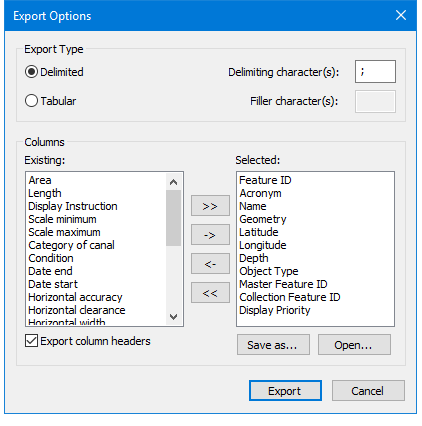
The Export Options dialog box is displayed.
Option | Description |
Export Type | Data is saved in rows and columns. These options define how the columns are separated. Select one of the following: • Delimited: Columns are separated by a delimiter character. You can type a delimiting character in the text box. • Tabular: Each column is a fixed width. If the data does not fill the column, filler characters are used. You can type the filler character in the text box. |
Select Columns | Attributes are exported in columns in the ASCII file. Select the columns that will be exported. All available columns are displayed in the column on the left. The columns to be exported are displayed in the list on the right. To export a column: 1. Select the column in the list on the left. 2. Click The column is added to the list on the right. To remove a column from the export list: 1. Select the column in the list on the right. 2. Click The column is added to the list on the right. To export all columns, click To remove all columns from the export list, click Export column headers: • On: Column headers based on the attribute names will be included. • Off: No column headers will be included. |
3. Select the export type.
4. Select the columns to be exported.
5. Click Export.
A Save As dialog box is displayed.
6. Select a location and file name.
7. Click Save.
The features are exported to an ASCII file.
A delimited file would look something like this:
1C 0000047794 00001,COALNE,Line |
1C 0000047817 00001,COALNE,Line |
1C 0000047934 00001,COALNE,Line |
1C 0000047936 00001,COALNE,Line |
1C 0000047940 00001,COALNE,Line |
1C 0000047948 00001,COALNE,Line |
1C 0000047980 00001,SLCONS,Line,CATSLC=4 |
1C 0000049726 00001,DEPCNT,Line,SCAMIN=6250,VALDCO=0.0 |
1C 0000049753 00001,DEPCNT,Line,SCAMIN=6250,VALDCO=0.0 |
1C 0000049764 00001,DEPCNT,Line,SCAMIN=6250,VALDCO=0.0 |
1C 0000052812 00001,DEPARE,Line,DRVAL1=-1.8,DRVAL2=0.0,SCAMIN=6250 |
1C 0000000007 00001,SOUNDG,Sounding,43-05.10N,070-44.22W,0.9,SCAMIN=10000 |
1C 0000000132 00001,SOUNDG,Sounding,43-04.81N,070-44.51W,11.5,SCAMIN=10000 |
1C 0000000431 00001,SOUNDG,Sounding,43-04.44N,070-42.10W,13.1,SCAMIN=10000 |
1C 0000000462 00001,SOUNDG,Sounding,43-04.47N,070-43.48W,21.3,SCAMIN=10000 |
1C 0000000464 00001,SOUNDG,Sounding,43-04.52N,070-43.73W,4.2,SCAMIN=10000 |
1C 0000000536 00001,SOUNDG,Sounding,43-04.90N,070-43.29W,10,SCAMIN=10000 |
1C 0000000632 00001,SOUNDG,Sounding,43-04.81N,070-44.58W,13.1,SCAMIN=15000 |
1C 0000000639 00001,SOUNDG,Sounding,43-05.07N,070-44.11W,2.4,SCAMIN=15000 |
 .
. .
. .
. .
.