Menu | Tools > Surfaces > Extract > By Digitizing |
Pop-up | surface > Extract (Layers window) |
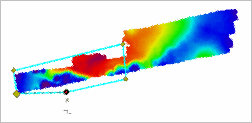
The Extract by Digitizing command is used to create a new coverage by copying a section of an existing coverage. You identify the section that you want to copy by digitizing a line around the data. All attributes present in the source coverage can be selected to be included in the new coverage. A copy of the digitized section will be saved as a new coverage, using the attribute values selected from the input. The resulting coverage will be in the format of the input data and will have the extents of the digitized section. For example, extracting from a raster grid will create a new raster grid; extracting from a SIPS mosaic will create a new SIPS mosaic.
The line is digitized using the standard feature creation tools. See Digitize for information on digitizing.
You may choose to use filters to extract only specific data from the digitized area. When applying a filter, you set conditions for the filter and only the nodes within the selected area that meet the conditions will be extracted.
Related commands:
• Extract Surface: Using a Feature Layer
Interface
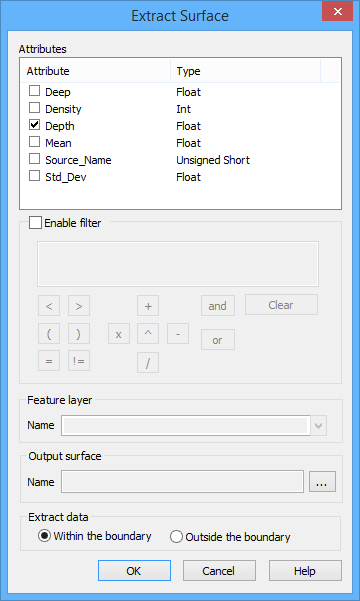
The Extract Surface by Digitizing command uses the following dialog box.
Option | Description |
Attributes | A list of all attribute bands present in the source coverage and the type of data contained in the bands. Click the check box for each attribute to be included in the extracted coverage. The primary Z layer (Depth, Height, etc.) is mandatory and cannot be turned off. Also, any designated points within the selected area will automatically be included in the extraction. |
Enable Filter | Click to enable the filter controls if you want to apply a filter to the data being extracted. |
Filter Equation Field | Use the filter controls and the keyboard to enter a filter equation in the field. For example, if you only want nodes with a Depth value of less than 8 metres, you would: • Double-click Depth in the Available Attributes list to add it to the filter. • Use the keyboard and/or filter buttons to add " < 8" after the attribute (including the spaces). The resulting filter displayed in the field will be "Depth < 8". |
Feature Layer Name | This field is used only when extracting using a feature layer. See Extract Surface: Using a Feature Layer for information on this procedure. |
Output Surface Name | The name and location for the extracted coverage. |
Extract Data | The Extract data option allows you to either include or exclude the input data within the digitized area. If you were to select Within the boundary, only data within the digitized line would be extracted. If you were to select Outside the boundary, only data outside the digitized line would be extracted, resulting in a coverage with a hole in it. |
Procedure
1. Select a raster coverage or a point cloud in the Layers window.
2. Select the (Extract) By Digitizing command.
The cursor changes to indicate you are in digitize mode.
3. Digitize a line around the data to be extracted.
When digitizing is complete, the Extract Surface dialog box is displayed.
4. Click the check boxes of the Attributes you want to include in the extracted coverage.
5. [Optional] Enable the filter options and enter a filter equation.
6. Click the Output surface browse button (...) then define a name and location for the extracted coverage.
7. Select an Extract data option.
8. Click OK.
The data within the digitized area is extracted to a new coverage in the format of the input data.