Menu | Tools > Features > Create Source Areas |
Generate one or more source area polygons automatically from the source information attribute of a combined surface. The source attribute can be selected from a surface layer, such as the “Contributor” layer, in string format. When finished, areas will be created to represent each data source that contributed to the surface.
The Mapping fields are used to map attributes to the new area objects based on the values in the contributor attribute. You have the option of parsing multiple attributes or mapping to a single attribute.
• Mapping to a single area object attribute populates the selected attribute with all of the values from the source (contributor) attribute.
• Parsing multiple area object attributes populates each mapped attribute with the appropriate value from the source (contributor) attribute.
Interface
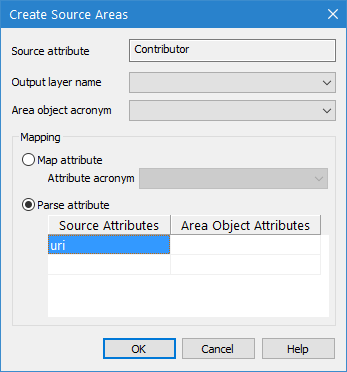
The Create Source Areas command uses the following dialog box.
Option | Description |
Source attribute | The attribute in the source surface that identifies the data source from which each node was populated. The Contributor attribute is used by default and cannot be changed. |
Output Layer Name | The feature layer on which to create the new area features. |
Area Object Acronym | The object acronym to assign to the new area features. |
Map Attribute | Select this option to map to a single area object attribute. The Attribute acronym field becomes active when this option is selected. This field is used to select the object attribute that will be populated with the contributor attribute values in the resulting area objects. |
Parse Attribute | Select this option to map the contributor attribute values to appropriate area object attributes. Only source attributes mapped to an area object attribute will be populated in the attributes of the resulting area objects. 1. Click to select this option and enable the attributes table. Each attribute present in the selected source attribute band will be listed in the Source Attributes column. 2. Select an attribute in the Source Attributes column. 3. In the Area Object Attributes column, click the accompanying row to activate a drop-down list. 4. From the drop-down list, select the object attribute that you want mapped to the selected source attribute. 5. Repeat for each source attribute that you want mapped to an S-57 attribute. |
Procedure
1. Open or create a feature layer to store the source area objects.
2. Select the source coverage in the Layers window.
3. Select the Create Source Areas command.
The Create Source Areas dialog box is displayed.
4. Select the Output feature layer from the drop-down list.
5. Select the Area Object Acronym to assign to the feature objects.
6. Choose a Mapping option.
7. Depending on the selected mapping option, either select an Attribute acronym from the drop-down list or populate the table for attribute mapping.
8. Click OK.
The newly created areas are added to the selected feature layer. To view the results, select the feature layer in the Layers window then select an area in the Display window. The attributes selected during area creation are populated in the Attributes window with the values from the source attributes.