The Set Vertical Coordinate System dialog box is displayed.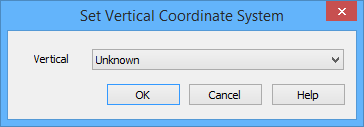
When a surface is loaded into a database, either through BASE Editor or the BathyDBServerLoader command prompt tool, the vertical coordinate system of the source surface is populated in the vertical coordinate system attribute (VCOSYS) of the resulting surfac object. If this value was not defined in the source surface, the VCOSYS attribute is not populated, but it can be set manually using the Set Vertical Coordinate System command. This command can also be used to change the VCOSYS value if it is incorrect.
To define or change the vertical coordinate system:
1. Connect to a database.
2. Select the relevant database query layer in the Layers window.
3. Select a surfac object in the Display window.
Multiple surfaces can be updated at once if they all use the same vertical coordinate system. |
4. Select the Set Vertical Coordinate System command.
Menu | Database > Set Vertical Coordinate System |
The Set Vertical Coordinate System dialog box is displayed.
5. From the list, select the Vertical Coordinate System that you want applied to the selected surfac object.
6. Click OK.
The vertical coordinate system of the surfac object is updated. Be sure to save your changes to the database.