The Replace Bathymetry dialog box is displayed.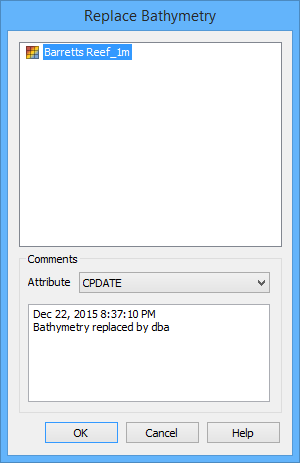
The Replace Bathymetry command is used to add bathymetry to a surfac object created from a polygon feature, or to replace the existing bathymetry in a surfac object.
Only users with appropriate permissions can replace bathymetry. See "User Roles" in the CARIS Bathy DataBASE Server Reference Guide for a table of the permissions associated with each of the default user roles |
Because this operation will add bathymetry to a database, and this cannot be undone via the Undo command, the application will not allow this command to be run if there are any previous unsaved changes. If there are any unsaved changes, a message will be displayed prompting you to save your changes before continuing.
To replace the bathymetry of a surfac object:
1. Ensure that the bathymetry source is open.
2. Select the relevant database query layer in the Layers window.
3. Select the surfac object to which you want to add bathymetry.
4. Select the Replace Bathymetry command.
Menu | Database > Replace Bathymetry |
Pop-up | Replace Bathymetry (database layer) |
The Replace Bathymetry dialog box is displayed.
All currently open BASE Surfaces and Point Clouds are listed as available sources of bathymetry.
5. Select a bathymetry source from the list.
A comment can be added to the surface as an attribute value to explain the replacement/addition of the bathymetry. You can choose the attribute to use, but it must be a text entry type. The default comment includes:
• the date and time that the bathymetry was replaced/added
• a statement that the bathymetry was replaced/added
• the user that performed the action
This information can be changed.
6. [Optional] Select the attribute to which you want to assign the comment.
7. [Optional] Enter a comment in the text entry box.
8. Click OK.
The bathymetry of the source surface is assigned to the selected surfac object.