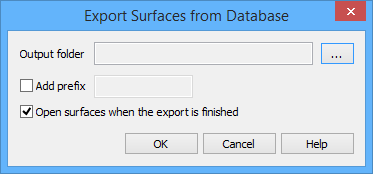
The Export Surfaces from Database command exports a copy of selected surfac objects and their metadata from a database to your local machine. The result is a CSAR file for each selected surface and an XML file for the metadata of each surface.
You may also export selected or superselected surface polygons from the database to a local file. |
The file used to map metadata when exporting data from a database, bdbattributetransform.xsl, is located at:
C:\Program Files\CARIS\BASE Editor\<version>\modules\BASE Manager\support
1. Connect to a database.
2. Select the relevant database query layer in the Layers window.
3. In the Display window, select one or more surfaces to export.
4. Select the appropriate (Export Surfaces from Database) Superselection or Selection command.
Menu | Database > Export Surfaces from Database > Superselection/Selection |
The Export Surfaces From Database dialog box is displayed.
5. Click the Browse (...) button to select the folder in which to save the file.
If you have more than one surfac object selected, a file will be created for each one. Provided the characters used in the name of each object being exported are valid, each export file will have the same name as the surfac object for which these files were created. If the object name contains one or more characters that are invalid for any of the types of files being exported, then these characters will be stripped from the names of all of the files being exported. For example, for a surfac object named "My:Surface", the resulting files would be "MySurface.csar" and "MySurface.object.xml".
The Add prefix option allows you to specify a prefix to be added to the beginning of filenames during export. This makes the exported files more easily recognizable and helps to avoid duplicate file names.
If a file already exists in the folder with the same name and prefix, a number will be added to the file name. This number will be incremented each time a new file is created in the folder with the same name.
For example, if a file named "MySurface.csar" already exists in the save location, the new file would be named "MySurface[2].csar". If you were to export yet another copy of this surface, the next file would be named "MySurface[3].csar".
6. [Optional] Click the Add prefix check box to enable the option.
7. [Optional] Enter the prefix text in the field.
You also have the option of having the new files open automatically once the export is complete. This option is turned on by default.
It is recommended that you turn this option off if exporting multiple surfaces because it can slow down the export. |
8. [Optional] Click the Open surfaces when the export is finished check box to select the option.
9. Click OK to perform the export.
The selected surface and its metadata are exported from the database to your local machine.
A message is displayed in the Output window with the start time, the surfaces exported, and the end and elapsed times for the export process.
Each selected surface is exported to a CSAR file and the metadata to a matching XML file.

The files are named according to the surfac objects selected. For the metadata file, the following naming convention is used:
surface_name.object.xml
This file can be opened and compared to the attributes of the selected surface in BASE Editor.