Menu | File > Export > Points |
Export the values from a coverage to a point cloud in a user‑specified format. The source coverage can be a raster surface, point cloud or variable resolution surface.
Interface
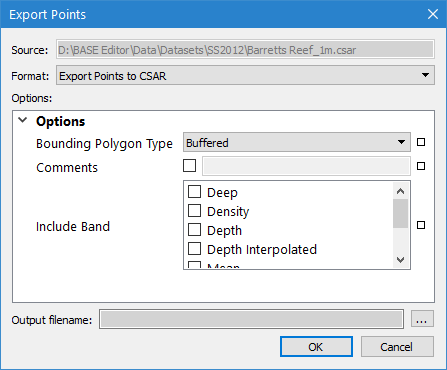
The Export Points command uses the following dialog box.
Option | Description |
Source | The name and location of the input file. The Source is defined by the coverage that was selected at the time the command was initiated. This field cannot be changed. |
Format | The output format for the resulting point cloud file. The options include CSAR and LAS. |
Options | The options for the selected output format. The available options will differ based on the selection in the Format drop-down list. If you hover the mouse cursor over the name of an option, a brief description of the option is displayed in a tooltip. |
Status Indicators
| Each option has a status indicator box beside the field. If the field has not been populated, or is populated with a default value, the box is coloured white. When a value is entered or a default value is changed, the status indicator box changes to grey to indicate it is no longer in the default state. If an option is mandatory and has not been populated, the status indicator box is coloured red. Fields can be returned to their default state by clicking the status indicator box and selecting “Reset”. |
Output filename | The name and location for the output point cloud file. 1. Click the browse button (...) to specify a name and location. |
Procedure: Export to CSAR
1. Select the parent layer of the coverage to export.
2. Select the Export Points command.
The Export Points dialog box is displayed.
3. Select CSAR for the output Format.
4. Define any necessary Options.
5. Specify a name and location for the Output filename.
6. Click OK.
The data is exported to a new point cloud.
Procedure: Export to LAS
1. Select the parent layer of the coverage to export.
2. Select the Export Points command.
The Export Points dialog box is displayed.
3. Select LAS for the output Format.
The Include Band option can be used to map the attribute bands of the coverage to relevant attributes in the LAS output file. This field can also be used to map status flags to relevant attributes of the resulting LAS file. For example, source points with a Rejected flag can be mapped to the LAS WITHHELD flag. If this option is not used, only the Depth and Status bands will be exported to the LAS file.
The Accepted status cannot be mapped through this option. Because this is the default state for points, it is not an actual flag to be mapped. |
4. Click the plus button ( ) for the Include Band option.
The Add Value dialog box is displayed.
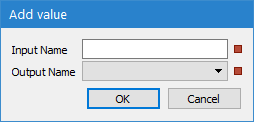
The Input Name field is used to identify the input attribute band and status flag that you want to map. This field must be populated manually and must follow these restrictions:
• Band names are case-sensitive and must be entered exactly as they appear in the source.
• Band names with either a colon (:) or a backslash (\) must have a backslash added as an escape character before the relevant character as these characters act as separators in the application. For example, to export the Synthetic flag from a band named "LAS:Flags" you must enter "LAS\:Flags:Synthetic" in order for the export process to identify the entry as a single band name. Refer to the CARIS Batch Reference Guide for further examples.
• Status flags must be included as part of the input band name, but separated from the band name with a colon. For example, to map the Rejected flag in the Status band to the WITHHELD flag in the LAS file, the Input Name would be "Status:Rejected" and the Output Name would be "WITHHELD". The result of this can be seen in the image below.
5. Type the name of the input band that you want to map.
6. Select the LAS attribute to which you want to map the attribute band values in the Output.
7. Click OK to return to the Export Points dialog box.
8. Repeat steps 4 to 7 for each attribute band you want mapped to the output file.
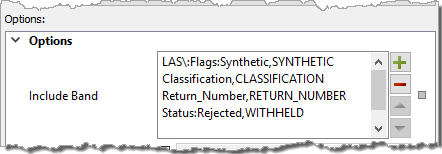
9. Define any other necessary Options.
10. Specify a name and location for the Output filename.
11. Click OK.
The data is exported to a new LAS file.
