Utilities Toolbar
The primary purpose of the utilities toolbar is to run external tools on a subset of open data. However, the implementation is general, so other use cases are also supported. Utilities can:
• Export the selected vector features to HOB, GML or Shapefile,
• Open this data in a specified application - either a CARIS application or a third party application,
• Process or analyze the data, using anything that can be run from a command line, such as
• a CARIS Batch process,
• a PL/SQL script,
• a Windows command, or
• a Python script.
• Open a specified output file automatically in the original application.
The utilities are defined through user-defined macros in XML-format files. A default file, utilities.xml, is provided with the application and can be found here:
C:\Program Files\CARIS\<application>\<version>\system\Utilities
This file adds a utility to launch a command prompt directly from the application with the current application environment. The sample file can be used as a template to create custom utilities files or they can be created from scratch. More than one macro can be contained in a single file.
In order for additional macros to be added to the Utilities toolbar, the Utilities folder option under the Files and Folders category of Tools > Options must point to the folder containing the XML file(s). Any utilities defined in the specified location when the application is started will be displayed in the Utilities toolbar, in addition to the one(s) in the installation directory. 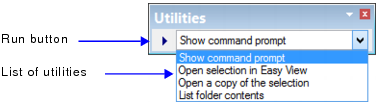
The diagram below shows how the utility file is used to initiate an external process:
(The red text indicates the tags that would be used in the utilities.xml file.)
• CARIS Application: The CARIS application in which you are running the utility.
• Utility: The individual utility selected from the drop-down list and being run from the utilities file.
• Selection/Superselection: An optional parameter that applies the selected utility to a selection and/or superselection of features in the application. For example, you could opt to export the selected features to one file and perform validation on those features, while the superselected feature is exported to a separate file for a different type of validation.
• External Process: The process run in the external DOS command prompt.
• Return File: An optional parameter that opens a specified file created by the external process in the original application.
• Output Window/Output File: Optional parameters that control how text provided by the external process is to be logged. It can be displayed in the Output window of the original application, and/or it can written to a specified log file.
Procedure
To display the toolbar:
1. Select the View > Toolbars > Utilities command.
Menu | View > Toolbars > Utilities |
To run a utility:
2. Select a utility from the list.
3. If required for the selected utility, select one or more features from a HOB or ENC file.
The Run button becomes active.
4. Click Run.
The external process begins and this message is displayed.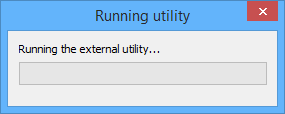
If the utility expects a Return File, or has been set as Blocking in the utilities.xml file, then this message will remain visible until the external process is complete.
Note that the Return File is always created as a new file. If it is desired to reintegrate this data into another file, a process such as Import Selected Objects or Import as Update needs to be run.
