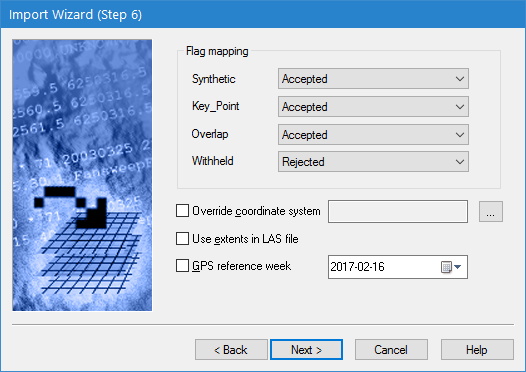
This step of the Import Wizard is used to map the LAS status flags to CSAR status flags and define the coordinate reference system and extents for the import.
If the LAS status flags are to be retained in the output coverage in addition to mapping the status flags:
• the coverage must be created as a point cloud, and
• the LAS_Flags attribute must be selected in the Format‑specific attributes list in the next step.
The resulting point cloud will contain an LAS_Flags attribute band populated with the LAS flags for each point.
Interface
The LAS Options step of the Import Wizard is shown below.
Option | Description |
Flag mapping | Select a status flag to be mapped to each of the LAS status flags. The options are Accepted, Rejected and Designated. The mappings will be output to the Status band in the resulting coverage. In the event that multiple flags are present on a single LAS point and mappings conflict, Designated overrides Rejected, and Rejected overrides Accepted. 1. Select an option from the drop-down list for each LAS status flag. To view points flagged as Rejected, the Show Rejected Points property must be enabled for the coverage. |
Override coordinate system | Specify the coordinate reference system (CRS) with which to import the source data. This option will override the CRS in the LAS header, if one exists. 1. Click the check box to enable the option. 2. Click the browse button (...) to launch the Select Coordinate Reference System dialog box and select a CRS. |
Use extents in LAS file | Use the extents contained in the LAS header to define the extents of the data being imported. If this option is not enabled, all of the data in the source is read regardless of the extents specified in the LAS header. |
GPS reference week | Specify the reference week for the date that the survey was performed. The date selected will be converted to the UTC time for the beginning of the week and stored in the Time band for the resulting dataset. 1. Click the check box to enable the option. 2. Click the calendar tool and select a date. |
Procedure
1. Select a status Flag for each LAS status.
2. [Optional] Select a CRS to use for the import.
3. [Optional] Enable the extents option.
4. [Optional] Select a reference week for the survey date.
5. Click Next.