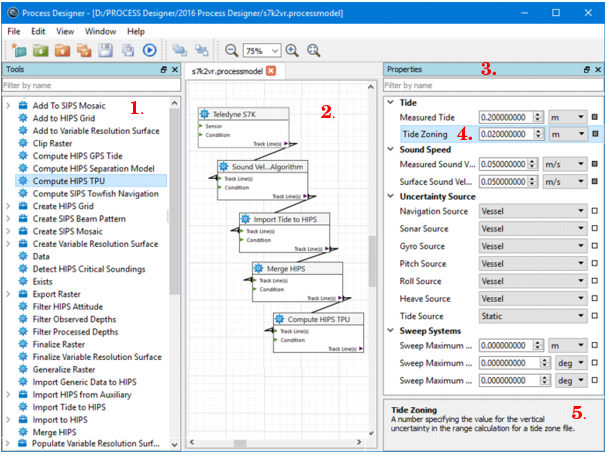
In Process Designer, tools are listed in the Tools list (1.). These tools can be added to the display window (model view) (2.), where they are ordered, connected and have properties and options set from the Properties window (3.).
When a properties field is selected (4.), a description of the function of the field is displayed (5.) in the description panel at the bottom of the Properties window.
Reposition windows
Both the Tool list and the Properties window can be repositioned within the Process Designer interface or onto your desktop during a working session.
To reposition one of these windows within the interface:
1. Select the window by its title bar, and drag it to the new position.
Certain areas in the interface will turn blue as you move the window over them. This indicates that the window can be docked there.
2. Release the mouse button to place the window in the new location.
These new locations are only retained during your current session. The default layout will be restored when you reopen Process Designer.
Model View
The model view contains tools linked in a logical order to perform a series of tasks, which is then saved as a *.processmodel file.
By default the view tab displays “new 1”.
Automatic Extend and Overview
As process tools and connections are added to a complex model, the model view window will automatically expand as you add tools to the edges of the view area. You can use the Zoom In and Zoom Out command to view parts of the model.
To see all of the components in a complex model:
1. Select the overview command.
Menu | View > Overview |
tool | |
The display is zoomed out to encompass all of the tools in the Model view.
Save the process model file
To save a model you have created in the view:
1. Select the Save As command from the File menu.
Menu | File > Save As |
2. In the Save As dialog box, browse to a save location and type a name for the new *.processmodel file.
To save changes to the model file as work progresses:
1. Select a Save command.
Menu | File > Save |
Tool |
|
Key | Ctrl + S |
When there is more than one model file open at the same time, the name of each saved model will be displayed on its tab. To save the contents of every open process model file:
1. Select the Save All command.
Menu | File > Save All |
Tool |
|
Key | Ctrl + Shift + S |


