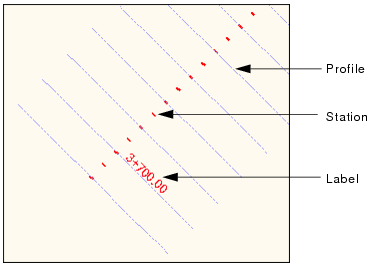
Stations are markers along a continuous sequence of alignments. By default, profile lines are perpendicular to the alignment, at a given station. After you group alignments, you need to define stationing rules for stations, profiles and alignment labels.
To define stationing rules, perform the following steps:
1. Select the Stationing option.
2. Click Add.
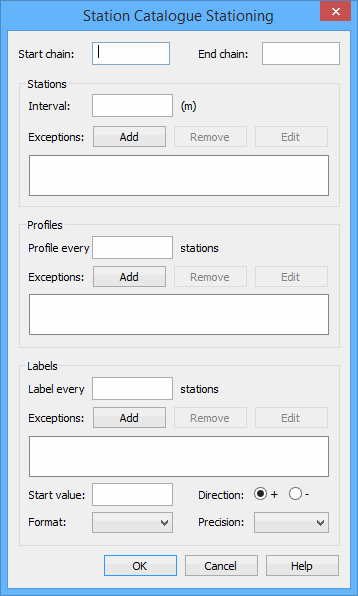
The Station Catalogue Stationing dialog box is displayed.
In this dialog box, you define the distribution of stations and profiles along the reach. First, you must define the range set, which is the start and end distances from the start of the first alignment. Each value in the Start chain and End chain fields must be measured from the start of the first alignment.
Use the Measure Distance and Angle tool to measure distances between points on the reach (see the Tools Menu chapter in the CARIS BASE Editor Reference Guide for information on this tool). Once you create stations, they can be queried to find their chain value along the sequence of alignments. |
3. Type the Start chain value.
4. Type the End chain value.
Stationing rules defined for a sequence of alignments cannot have gaps between adjoining alignments. |
Stations
5. Type the Interval value, which is the distance between stations.
Using the Exceptions fields in each section, you can identify specific chains to exclude when applying stationing, profiling or labelling.
6. [Optional] To add an exception rule for stationing:
• Click Add.
The Choose Chain dialog box is displayed.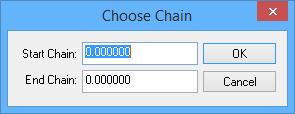
• Type the Start Chain and End Chain for the range you want excluded from stationing.
• Click OK to close the Choose Chain dialog box.
Profiles
7. Type the Profile every amount to determine the closeness, or the frequency of placement, of one profile in relation to any other profile.
8. [Optional] To add an Exception rule for profiling, perform the following steps:
• Click Add to display the Choose Chain dialog box.
• Type the Start Chain and End Chain for the range you want excluded from profiling.
• Click OK to close the Choose Chain dialog box.
Labels
You must also define the label properties.
9. Type a value in the Label every field to define the frequency of labels in relation to the number of stations.
10. [Optional] To add an Exception rule for labelling, perform the following steps:
• Click Add to display the Choose Chain dialog box.
• Type the Start Chain and End Chain for the range you want excluded from labelling.
• Click OK to close the Choose Chain dialog box.
11. To define the actual label value for the first labelled station, type a value in the Start value field.
12. To specify whether to increment the station labels positively or negatively, select a Direction option.
13. Select a value from the Format drop-down menu.
This allows you to specify the position of the “+” divider by indicating the number of spaces to include to the left of the decimal.
14. To specify the number of decimal places to display, select a value in the Precision drop-down menu.
A value of "-1" in the Precision field defaults to full precision. |
15. Click OK to close the dialog box.
The Display window refreshes to show the stations, profiles and labels.