Menu | Tools > Editors > Sound Velocity Profiles |
Tool |
|
SVP Editor is a separate program that is launched from HIPS and SIPS that can be used to edit an existing SVP file before it is loaded and applied during sound velocity correction.
To apply SVC, see Sound Velocity Correction.
To open SVP Editor:
1. Select an SVP Editor command.
Menu | Tools > Editors > Sound Velocity Profiles |
Tool |
|
HIPS SVP Editor is displayed. The example below shows the data for an open SVP file.
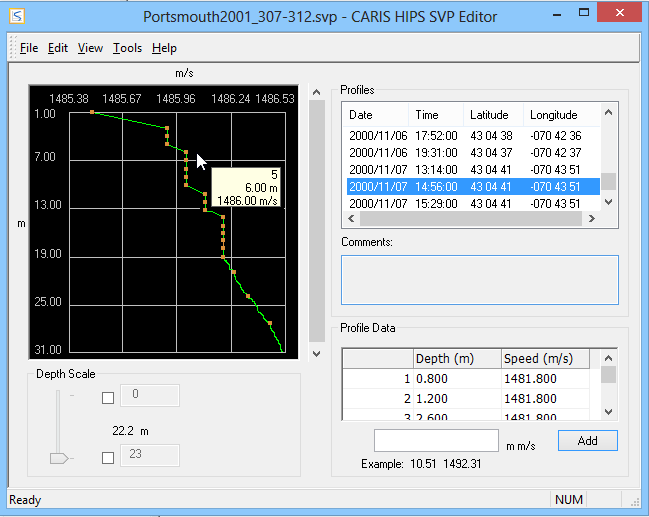
The left-hand side of the editor contains a graphical representation of all the depth/speed data for the selected profile. In the example above, the points and tool tip options have been turned on. See Options for details.
2. Select a point on the graph to highlight the values in the Profile Data table.
Range Slider
Since some data types include a bottom end buffer that distorts the graphing of the profile, a Depth Scale slider is available to limit the range of data.
To set a range:
3. Enable the check boxes.
This activates the value entry fields.
4. Enter the minimum and maximum values.
As the values are adjusted, the graph display is updated.
Profiles
The Profiles box lists profiles by date and time, showing the latitude and longitude for each. This data is used when applying the Nearest in Distance option for profile selection during sound velocity correction.
Profile Data
The Profile Data box shows the depth and speed values for the profile selected in the Profiles table.
The Comments box displays comments added or edited for a selected sound velocity profile.
