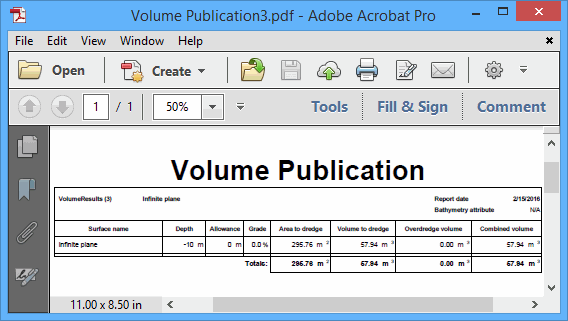
In addition to the Export to Text File option provided in the Volume Results dialog box, the results of a volume computation can also be output using the New Publication command. This output function can be used to create a PDF of the XML results.
To publish volume computation results:
1. Open the surface for which volumes were calculated.
2. Select the surface parent layer in the Layers window.
3. Select the New Publication command.
Menu | Tools > New Publication |
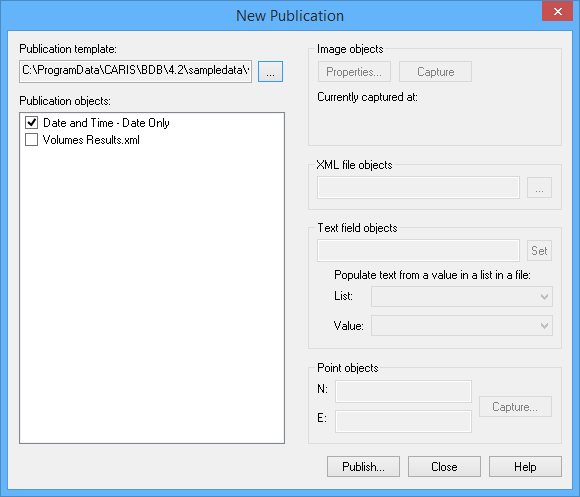
The New Publication dialog box is displayed.
The Template file field is used to select the template you want to use to populate the report. A default volumes publication template, volume_publication_template.rpx, is provided with the application. This file is located at:
C:\ProgramData\CARIS\BASE Editor\<version>\SampleData\
4. In Publication template, click Browse.
An Open dialog box is displayed.
5. Select a volumes template file and click Open.
The Open dialog box is closed; the New Publication dialog box is redisplayed with the selected volumes template file open.
The Publication objects section is populated with a list of the available objects from the selected template. For the default volumes publication template, this includes the date relevant to the calculation and the XML volume results file from which to collect data for the report. The Publication objects must be selected to populate the information in the publication template. If using the default template, both objects should be selected.
6. Add or remove check marks for the available Publication objects.
As you select each publication object, you may notice fields in the different “objects” groups: Image, XML file, Text field, or Point, become enabled. These fields allow you to define settings for the currently selected publication object. For more information on the object properties fields, see the Publication topic in the CARIS BASE Editor Reference Guide.
For the Volumes Results.xml publication object, you must define the XML files Object property, otherwise there will be no data to include in the report.
7. In the Publication objects list, select the Volumes Results.xml option.
8. Under Object properties, for the XML files field, click Browse.
9. Locate and select a volumes publication template file and click Open.
Once you have the desired publication objects defined, you can generate the report.
10. To generate the publication, click Publish.
11. Define a name and location for the publication file, then click Save.
The PDF Export Settings dialog box is displayed.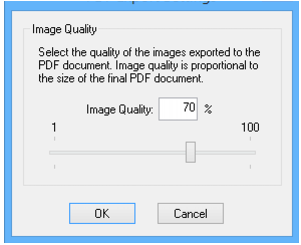
12. Use the slider bar to select the quality level to use for exporting the images in the publication—the higher the quality, the larger the file.
13. Click OK.
The publication is generated and stored as a PDF file in the specified location. See New Publication for information on these options.