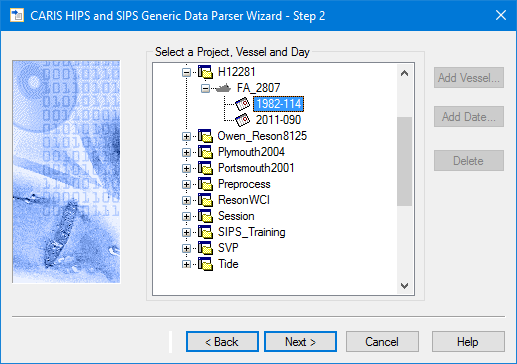
If you have not already defined a project directory, you will be prompted to do so.
To create a new project directory:
1. Right-click in the data tree area of the New Project dialog box.
2. Select Connect To… from the pop-up menu.
3. Name the new project folder and use Browse to set the path to the new data directory.
4. Click OK.
Use this dialog box to select the project to which the converted data will be saved.
If you are updating existing survey lines:
1. Expand the file tree and select the destination Project folder.
2. Click Next.
If you are creating new survey lines:
1. Select the Project directory and click Add Vessel.
The Available Vessels dialog box is displayed.
2. Select a vessel folder and click OK.
The new Vessel folder is displayed in the selected project directory.
3. To add a day folder, select the Vessel folder and click Add Day.
The Calendar dialog box is displayed.
4. Select a year/month/day from the calendar, and click OK.
A Day folder with the selected date is now displayed in the Vessel folder.
5. Select the Day folder.
6. Click Next.
Delete empty folders
To remove an empty Day or Vessel folder from the P/V/D tree,
7. Select the folder and click Delete.