Menu | Model > New Feature > Template > From Cross-Section |
Tool |
|
To create a new template from a cross-section:
1. Select the (New Feature, Template) From Cross-Section command.
Menu | Model > New Feature > Template > From Cross-Section |
Tool |
|
The Template from Cross-Section dialog box is displayed.
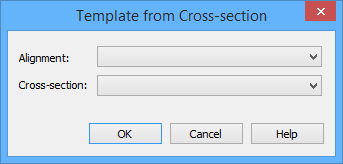
2. Select the alignment to which the cross-section will be applied.
It is typical to pick a compound alignment containing multiple sub alignments. |
Steps 5 and 6 below give the option to use only a subset of the alignment, if desired. |
3. Select the cross-section to apply to the alignment.
4. Click OK.
The selected alignment will now be displayed with a buffer around it.

This indicates that additional input is required to specify the portion of interest of the alignment. The start and end chain of the portion of interest can be specified by dragging the end points of the buffered area to the appropriate location.
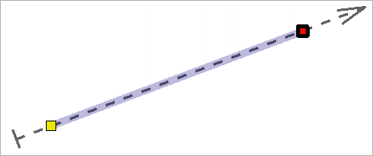
5. [Optional] Select an end of the chain interval and drag it to the appropriate location.
6. [Optional] Select the other end of the chain interval and drag it to the appropriate location.
7. Press the End key.
A template will be created automatically, with one surface for every sub alignment of the selected alignment, and for every segment of the cross-section.
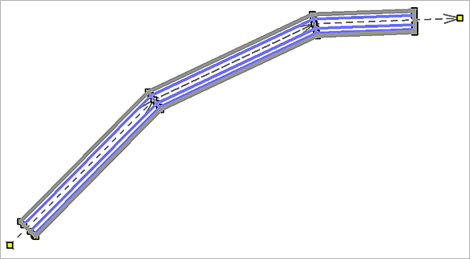
The points of the surfaces are all defined based using linear referencing, that is, as chains and offsets from the selected alignment, so modifying the alignment will update the surfaces and template automatically. Modifying the cross-section will not affect templates that have already been built from the cross-section.
To summarize, when a cross-section is applied to an alignment, a new template is automatically created.
.gif)
