Datasets of the same type can be grouped and ungrouped in the Layers window. Grouping allows multiple sources to be displayed as a single source.
Grouping is available for raster surfaces, raster images and point clouds. Only one type of dataset can be included in each group. For example, a raster surface and a raster image cannot be added to the same group because they are different data types.
For the datasets included in each group, attribute bands with the same name are drawn in the Display window using the same display properties (colour maps, extents, filters, and so on). The properties are defined by the first dataset in each attribute band group.
Related commands:
Procedure: Create New Group
1. Select the parent layer of the dataset for which you want to create a group.
2. Right-click the layer and select the Create New command.
Pop-up | dataset > Group > Create New |
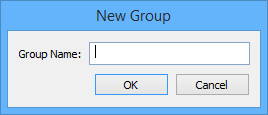
The New Group dialog box is displayed.
3. Type a Group Name.
4. Click OK.
A group layer is created in the Layers window and the selected dataset is added to the group.

Procedure: Add Dataset to Group
Once a group is created, additional datasets of the same type can be added.
1. Select a dataset in the Layers window.
2. Right-click and select Group > group name, for the group to which you want to add the dataset.
If you select a dataset that already belongs to a group, that group is displayed as unavailable (greyed out) in the pop-up menu. |
Pop-up | dataset > Group > group name |
The dataset is added to the group you selected.
Procedure: Group all Like Datasets
If you wish to add multiple datasets to a group, the Group All Like Types command can be used rather than adding each dataset individually. This command automatically adds all open datasets that are of the same type as the current group and that are not part of another group.
1. Select the root layer of a group in the Layers window.
2. Right-click and select Group All Like Types.
Pop-up | group > Group All Like Types |
All datasets of the same type will be added to the group.