
Step 4: Conflicts of the Combine Surfaces wizard is used to define conflict resolution rules. These rules tell the application how to resolve conflicts between overlapping areas of the selected input surfaces.
Conflicts can exist both within a single surface and between overlapping surfaces.
• Conflicts within a single surface occur when multiple nodes exist at the location of a single grid node on the output surface. For example, this can occur if the output surface has a coarser resolution than the input.
• Conflicts between multiple surfaces occur when areas of each surface overlap.
Rules define which data supersedes other data in a conflict. If you have created rules in the current session, they are displayed in the Apply Rules... list. If you have existing rules that were not created in this session, they can be added to the list using the Import button. Otherwise you must create new rules. Any rules in this list are applied to all surfaces included in the combine.
Interface
The following is the fourth step of the Combine Surfaces wizard.
Option | Description |
Apply rules in the following order | The conflict resolution rules to apply when combining surfaces. This list is populated with all rules that have been created in the current session or imported. The rules are applied in the order that they are listed. The order can be changed by selecting a rule and dragging it to a new location in the list. |
Rule description | The details of the rule currently selected in the list of rules to apply. |
New | Launch the Rule Wizard and create a new conflict resolution rule. See Rule Wizard for information on creating and editing rules. |
Modify | Launch the Rule Wizard and edit the rule currently selected in the list of rules to apply. 1. Select a rule in the list. 2. Click Modify. 3. Edit the settings of the rule. 4. Click OK to save the changes and return to the Combine Surfaces wizard. |
Delete | Remove the currently selected rule from the list of rules to apply. If the rule has not been exported to a file, the rule will be permanently deleted. If it has been saved to a file, this will simply remove the rule from the list; the rule file will not be affected. |
Import | Import an existing rule that has been previously exported to a rule file. |
Export | Export a new or edited rule to a new rule file for future use. This will create a .crfx file with the details of the rule. |
Override ambiguity check | Select this option if conflict resolution is not required. When this option is selected, the application will first use any conflict rules to try to resolve conflicts. If the conflict cannot be resolved, the application will then automatically select the first node that meets all the criteria in the rules. Whichever surface contains this node will be considered the superseding surface. |
Apply dataset metadata rules based on | This option can be used to consider holes as valid data in the combine process when applying metadata rules. This option requires the selection of at least one metadata rule. When this option is applied, the winning surface of a metadata rule will be determined based on the metadata only, regardless of whether the surface has populated data or holes in the area. Any holes within the winning areas will be preserved in the output surface. This option can be applied based on the source surfaces’ bounding polygon or holiday band. • When using the Bounding polygon option, the entire area inside the bounding polygon of the winning surface will contribute to the output surface, whether it is populated with data or not. See Digitize New Polygon Boundary for information on creating or editing bounding polygons. • When using the Holiday band option, the entire area covered by the holiday band of the winning surface will contribute to the output surface, whether it is populated with data or holes. Note that areas outside the data are not considered; only internal holes identified by a holiday band may be preserved. In order to use this option, a holiday band must already exist for each surface being combined. If the bounding polygon option is used, band level rules cannot be applied. If using the holiday band option and conflicts cannot be resolved using only metadata rules, a band-level rule can be applied. Hole-preservation cannot be guaranteed in this case. Alternatively, the override ambiguity option can be enabled. If combining only point clouds and rules have been specified, the Bounding polygon option needs to be selected. The Holiday band option is not applicable in this situation. 1. Click the check box to enable the options. 2. Select an option. |
Procedure
1. Create or import conflict resolution rules.
2. Export the rule if it is to be kept for future use.
3. Enable any other necessary options.
4. Click OK.
The time required to complete this process will vary based on the number of surfaces and their respective sizes.
When the process is successful, a surface is generated and a message indicating the start and end times of the process is displayed in the Output window.
If the surfaces combined did not have the same vertical reference system, the message will include that fact and inform the user that the selected reference system was used. If a database was selected for the output location, the new surface is saved to the database.
The resulting surface is added to the Layers window and the Display window. The surface will contain all attribute bands that were present in the source surfaces. If the input surfaces contained incompatible attribute bands (attributes with the same name but different Z-axis directions or different data types), those attribute bands will not be included in the output surface. Any bands that were skipped will be identified as soon as the combine operation is started. For a local combine, this will be reported in the Output window. For a database combine, this will be recorded in the log files for the database.
The Designated layer will only be included if designated soundings/nodes were selected during conflict resolution. |
If the combine is not successful due to unresolved conflicts, the following error message is displayed and the Combine Surfaces wizard remains open.
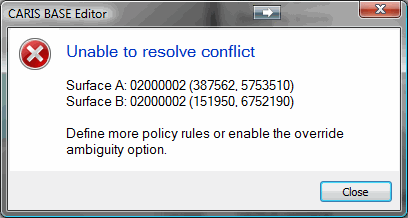
The combine process will not complete successfully if the rules defined did not resolve all conflicts. For example, if a procedure used MostRecentData but both surfaces had the same date, the conflict would not be resolved.
If it is important that all conflicts be resolved before creating the output surface, additional rules are required and you can then try again. See Conflict Rule Examples for some examples of additional rules.