Menu | Edit > Contours > Smooth Contours |
Smooth out and filter contour lines with tightly curved or angular line segments.
Smoothing is performed using the bSpline algorithm. When using this option, the distance between vertices is shortened by adding additional vertices. By having shorter edges, smoother curves are achieved.
Filtering is based on the Douglas-Peucker algorithm. When using this option, vertices are removed from the lines if they are not necessary. For more information on this algorithm, see Douglas-Peucker Algorithm.
Interface
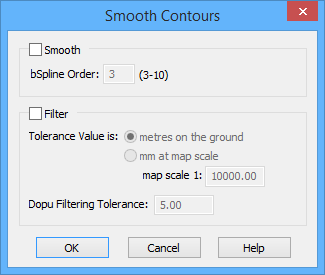
The Smooth Contours command uses the following dialog box.
Option | Description |
Smooth | This option is used to apply smoothing to the selected contours. A bSpline Order value must be specified if using this option. |
bSpline Order | The bSpline Order defines the degree of smoothing you wish to apply. |
Filter | This option is used to apply filtering to the vertices in the selected contours. You can choose to filter by metres on the ground or by millimetres (mm) at map scale, which requires you to enter a scale. |
Tolerance Value | The tolerance type to use for filtering. 1. Select either metres on the ground or mm at map scale. If you choose mm at map scale, a value must be entered in the map scale field. |
Dopu Filtering Tolerance | The number of units by which to perform Dopu filtering. Enter a value in the field. |
Procedure
1. Select a feature layer with contours.
2. Select one or more contour lines.
3. Select the Smooth Contours command.
4. Select Smooth and/or Filter.
5. Set any necessary options.
6. Click OK.
The selected line is smoothed/filtered according to the settings defined.
Example
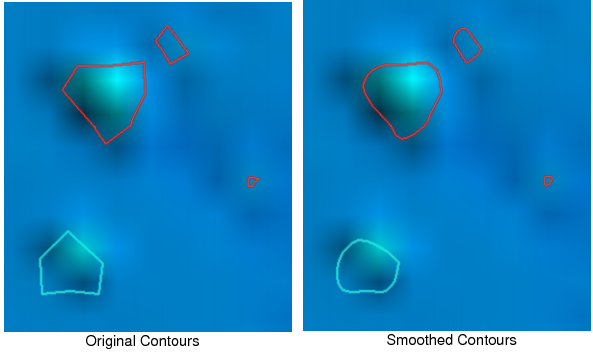
Below is a group of contours that have been smoothed using a bSpline Order of 3.