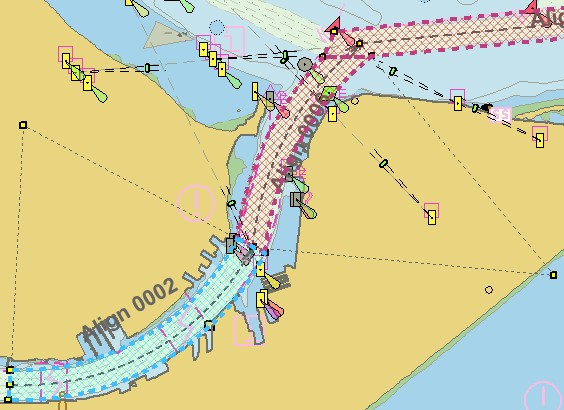
Surfaces are created using reference model points, which form line segments and alignments. If any of those line segments or alignments happen to be curved, it is possible to convert a surface to a curved surface.
To create a curved surface:
1. Select the desired surface in the Model window or superselect it in the Display window.
The selected surface is now the active reference model feature. The Model Feature window is populated with information for the surface.
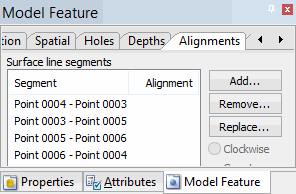
2. Select the Alignments tab in the Model Feature window.
The Alignments tab is displayed.
3. Select the line segment of the surface that you want to curve according to an alignment.
4. Click Add.
The Feature Selection dialog box is displayed.
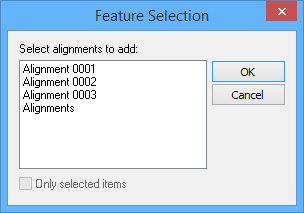
5. [Optional] To display only previously selected alignments, select the Only selected items option.
6. Select an alignment.
7. Click OK.
The alignment is associated with the selected line segment of the surface. The line segment of the surface takes on the curve of the alignment.
8. Repeat Steps 3 to 7 for other line segments in the surface to align the appropriate segments with the curve.
The Display window is refreshed to reflect your changes.