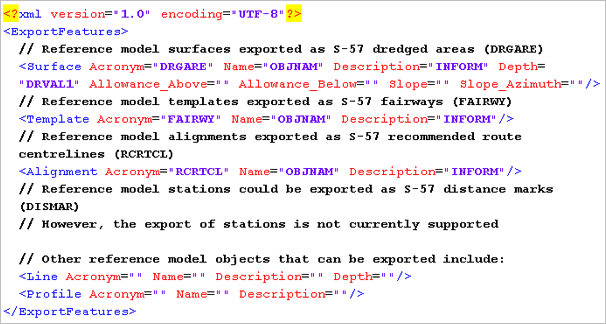
The following is an example of a matching file used to export reference model features to a HOB file.
A matching file assigns acronyms to feature types and attributes for export. Only features that have had an acronym assigned to them in the matching file will be exported.
The above example, which comes from the sample file at C:\ProgramData\CARIS\BASE Editor\<version>\SampleData
includes all attributes that are supported by BDBTM, although not all are used. If you wish to use an attribute that is not defined, you must assign an acronym manually.
It is recommended that you first save sample files with a new name before making any changes to them. |
When assigning acronyms, the general format for each statement is:
<RMFeatureType Acronym="SixLetterAcronym" AttributeName="SixLetterAcronym">
where you can have as many attributes as needed.
The feature definitions can be entered in any order, as can the attribute acronyms for each feature type. The only formatting rule for the file is that you must have the first two lines and the very last line from the sample file encompassing the definitions.
Creating definition statements
To create a matching file:
1. Open a blank file in a text editor.
2. Copy the first two lines from the sample file and paste them into your file.
3. Type a statement with a reference model geometry for the value.
For example, to export surfaces as dredged areas, this would be:
<Surface Acronym="DRGARE">
4. Within the same brackets, type a statement to assign an acronym to the attribute you wish to export for this feature type.
For example, to export the names of surfaces, this could be:
<Surface Acronym="DRGARE" Name="OBJNAM">
5. [Optional] For each additional attribute you wish to have exported for the feature type, add additional definitions within the brackets.
6. Repeat steps 3 to 5 for each object acronym you want mapped.
7. Copy the last line from the sample file and paste it as the last line in your file.
8. To finish, select a path and file name and save the file in XML format.
The catalogue matching file is finished.