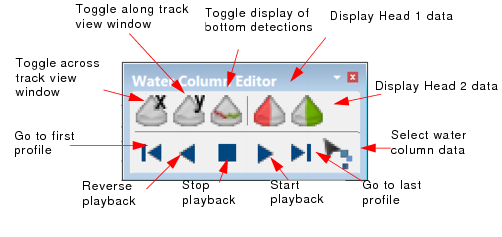
When water column data is open in Swath Editor, the Water Column Editor toolbar and WCI control tab are displayed.
Water Column Editor Toolbar
The Water Column toolbar contains the controls to open and close the Across track and Along track windows, to display the bottom detection and to control the play back of the imagery.
The Display across track and Display along track tool buttons open and close their respective windows.
The Bottom Detection button toggles the bottom detection on and off. In the across track it will indicates the current swath bathymetry and in the along track, the centre beam bathymetry If activated when Stacked View is enabled, the bottom detections are also stacked.
Head 1 data and Head 2 data are used when there is data from both heads of a dual head multibeam configuration. You can toggle between the heads to determine which data should be plotted on top: Head1 (port data) or Head 2 (starboard data).
The Select button enables you to select water column data in the across track or along track windows, for example, to add data to the Additional Bathymetry layer.
WCI Control tab in Swath Editor
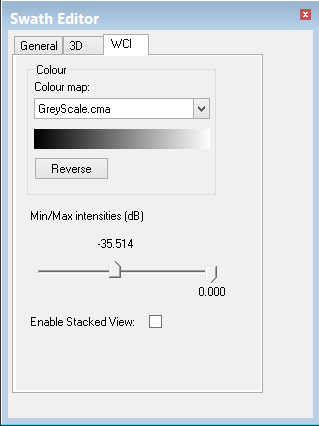
Use the Colour controls to set the colour of the data displayed in the Across track and Along track windows.
1. Select a colour from the Colour map field.
2. Click Reverse to change the current colours to their inverse.
Water column data can be filtered by intensity values, so that only data within the set range is displayed. To filter the data:
3. Use the sliders to set a filter range between -64.000 dB and zero.
These intensity settings are retained so that the same filter range can be applied when the data is loaded into Subset Editor.