Menu | Edit > Restart Cleaning |
Tool |
|
Menu | Edit > Restart Cleaning |
Tool |
|
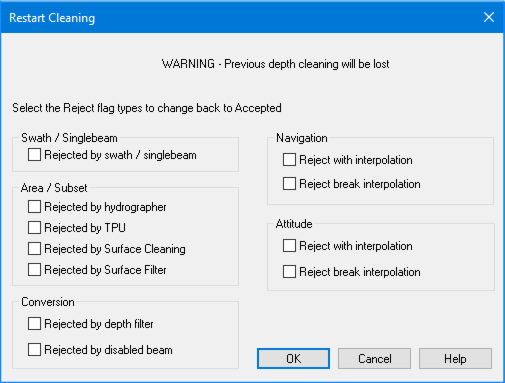
Edits made to sounding, attitude, and navigation data using the various data cleaning tools can be undone using the Restart Cleaning command. The Restart Cleaning function resets status flags for each selected track line to their original values, e.g., “Accepted” so that the editing process can be restarted.
You can set which editing process will be reversed by selecting the appropriate check boxes in the dialog box.
All previous depth cleaning is lost once this command is implemented. |
Procedure
1. Select the track line(s).
2. Select the Restart Cleaning command.
The Restart Cleaning dialog box lists the types of criteria
3. Select any or all of the check boxes to select criteria by which data was rejected.
Criteria that rejected data | Data that is reset to “Accepted” |
Rejected by Swath Editor or Single Beam Editor | Any sounding data that was rejected in Swath or Single Beam Editor, or by the Swath or Single Beam filters. |
Rejected by Hydrographer | Any sounding data that was interactively rejected in Subset Editor. |
Rejected by TPU | Data that was rejected during Total Propagated Uncertainty (TPU) filtering. |
Rejected by Surface Cleaning | Data that was rejected during Surface Cleaning. |
Rejected by Surface Filter | Data that was rejected during CUBE filtering. |
Rejected by depth filter | Data that was rejected by the depth filter during conversion. |
Rejected by disabled beam | Data that was rejected due to the disabled beam flag during conversion. |
Rejected with interpolation (Navigation) | Any navigation data rejected with interpolation in Navigation Editor. |
Rejected with break Interpolation (Navigation) | Any navigation data rejected without interpolation in Navigation Editor. |
Rejected with Interpolation (Attitude) | Any attitude data that was rejected with interpolation in Attitude Editor. |
Rejected break Interpolation (Attitude): | Any attitude data that was rejected without interpolation in Attitude Editor. |
4. Click OK.
The data in the selected track lines select is now flagged as Accepted.
