Step 2: Text file
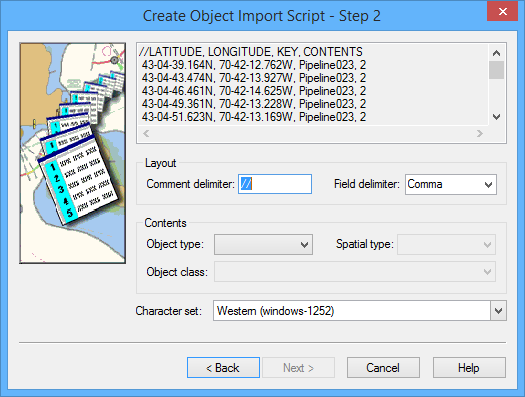
The Create Object Import Script - Step 2 dialog box is displayed
Options | Description |
File | The first few rows of the file. |
Layout | • Comment delimiter: Comment delimiters are placed at the start of a text line to indicate that the line is a heading. The contents of any line with this delimiter at the start will be used as column headings. Change the delimiter by typing one or more characters in the text box. The default is • Field delimiter: Field delimiters separate the data fields in the text file. Common delimiters are commas, tabs, and spaced, but other characters can be used. Change the field delimiters by selecting from the list or by typing a new character. |
Contents | • Object type: Choose from area, a line, or point. • Spatial type: Define the spatial type of spatial to use for the object. Choose from the list. • Object class: Define the exact type of object to be created. Choose from the list. |
Character set | The character encoding set used in the input text file. Select from the list. |
1. Set any necessary options.
2. Click Next.
Step 3 is displayed. See Step 3: Attributes and keywords.
Step 2: Shapefile
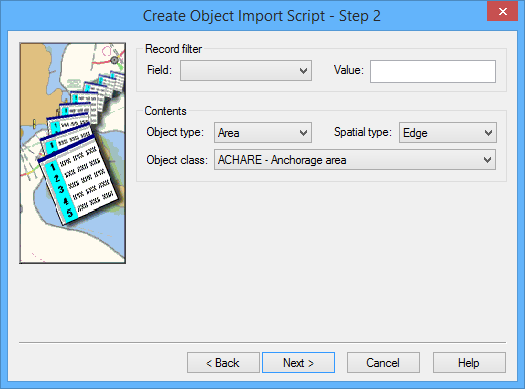
The Create Object Import Script - Step 2 dialog box is displayed.
Options | Description |
Record filter | Import only data that meets specific criteria. • Field: Select from the list. • Value: Type a value Leave Field blank to import all data from the Shapefile. |
Contents | Map the file contents to a dictionary feature. • Object Type: This is determined from the Shapefile and cannot be changed. • Spatial type: Choose from Edge, Geodesic, and Loxodrome. • Object Class: This contains a list of appropriate features. Choose from the list. |
1. Select an Object class.
2. Select a Spatial type.
3. Set any other necessary options.
4. Click Next.
Step 2: Database
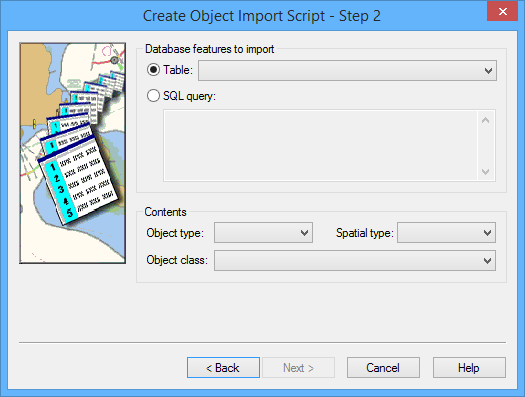
The Create Object Import Script - Step 2 Database dialog box is displayed.
Option | Description |
Database features to import | Select the source of the input data. • Table: If a suitable table exists, select it from the list • SQL Query: Filter the data to be imported using an SQL query. Type any valid SQL statements in the text box. |
Contents | Map the file contents to a dictionary feature. • Object Type: Select from the list. • Spatial type: Select from the list. Choose from Edge, Geodesic, and Loxodrome. • Object Class: Appropriate features. Choose from the list. |
1. Select the data source.
2. Select the Contents options.
3. Click Next.