Menu | Tools > Editors > Side Scan > Select |
Tool |
|
Use the Side Scan selection tool to select a range of data. The profiles for the selected data can then be viewed and edited.
A selection can be further defined using superselection, or by specifying profile or ping numbers.
To range-select data:
1. Click the Select Side Scan button on the Side Scan Editor toolbar, or the command from the menu.
Menu | Tools > Editors > Side Scan > Select |
Tool |
|
The cursor will become a cross-hair when positioned in the View (waterfall) window.
2. Press the mouse button and drag the cursor across the area that you want to select.
The selected range is shown bounded with a rectangular yellow box:
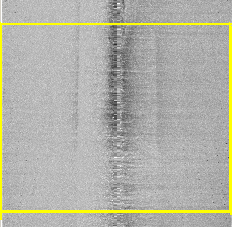
This range will remain selected until you click outside the range.
Details of data selected in the View can be seen using the Query command.
1. Select data in the waterfall view.
2. Right-click the selected data.
3. Select the Query command from the pop-up menu.
Menu | Edit > Query |
Tool |
|
Pop-up | Query |
The pings in the selection and their profile data are listed in the Selection window. 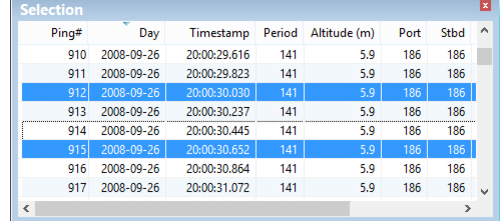
Superselection
Superselection selects data within an already selected range of data. You can superselect a single ping or a range of pings in the Selection window and they will be highlighted in the View window.
To select a single ping from a queried selection
1. Click on the row in the Selection window.
The superselected ping will then be highlighted in blue within the already selected selection in the View, as illustrated below.
To select a sequential range of pings:
2. Press and hold the Shift key, and in the Selection window, click in the first row of the range and then in the last row of the range you want to select. Release the Shift key.
The superselected range of pings is highlighted, and in the waterfall view, a rectangle is displayed containing the range of pings.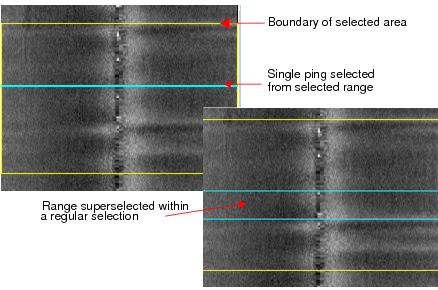
Holding down the Ctrl key while selecting rows in the Selection window will display the individual pings as blue lines in the View window.
Select by ping number
When you make a selection in the Side Scan View, the start and end ping numbers of that selection are displayed in the Selection field of the Properties window. 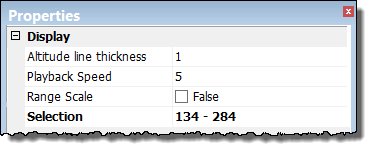
To refine your selection:
Type the ping number, or range of numbers you want to select.

