Menu | View > Display Filter |
Tool |
|
Key | <F4> |
Menu | View > Display Filter |
Tool |
|
Key | <F4> |
You can display or hide data in HIPS editors based on assigned status flags, using the Display Filter command. This command controls the display of Accepted and Rejected soundings, as well as Critical Soundings.
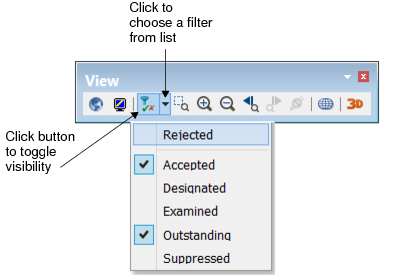
For example, the two-part Display Filter button on the View toolbar can be used to display or hide Rejected data in an editor.
The left part of the Display Filter button activates the display of the types of data selected from the list on the right-hand part of the button. By default the Display Filter is not enabled and all data is displayed.
In the example below, the Display Filter button is activated, and Accepted and Outstanding soundings are set for Display.
.
For example, to toggle between displaying all the data open in a HIPS editor, and displaying only Rejected data:
1. Open data in one of the HIPS editors.
2. Click the arrow part of the Display Filter button and select the Rejected check box from the drop-down list.
3. Click the Display Filter button to make the Rejected data visible.
4. Click the button again to see all data.
The status of individual soundings can be seen by querying data in an editor, and viewing the Status column in the Selection window.
Reason for Rejection
You can also control which type of rejected soundings are displayed in the editors. See (View) Rejected Flag Types.
Related commands:
 on HIPS Data Filters toolbar