CARIS is a basic viewer for displaying read-only raster and vector marine data. Functionality can be extended by acquiring
add-on modules to create and edit a wide range of bathymetric and nautical chart products.
Modules are activated in CARIS through licenses. Each module requires its own license.
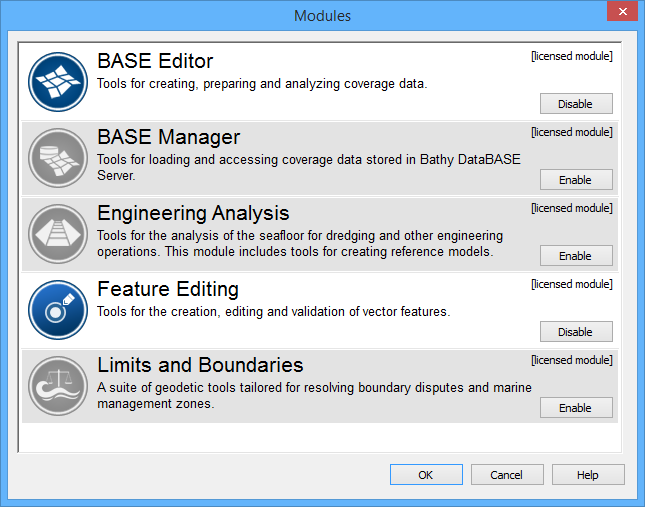
The following modules are available.
Module | Description |
BASE Editor™ | Tools for creating, preparing and analyzing coverage data. |
BASE Manager™ | Tools for loading and accessing coverage data that is stored in a Bathy Database Server. |
Engineering Analysis™ | Tools for the analysis of the sea floor for dredging and other engineering operations. The module also includes tools for creating reference models. |
Feature Editing | Tools for the creation, editing and validation of vector features. This module is automatically activated when the BASE Editor and Limits and Boundaries modules are activated. |
HIPS1 | Bathymetry and water column processing tools for review, correction, and production of sounding data. |
SIPS2 | Sonar imagery processing tools to create high-resolution images from raw sonar data and to identify contacts within that imagery. |
Limits and Boundaries™ | Geodetic tools for resolving boundary disputes and marine management zones. |
1 This term is a trademark of Teledyne CARIS, Reg. USPTO.
2 This term is a trademark of Teledyne CARIS, Reg. USPTO.
Modules are set to active through the Modules dialog box.
When a module is activated, commands and functions related to that module are made available. (For more information on the Modules dialog box, see the CARIS help.)
Both the basic CARIS application and modules share common files in C:\Program Files\CARIS\Caris\<version>\system. These files control what types of data can be opened and how that data is displayed.
In addition to the System folder, each module also has support files required by that module, to display and process data. The paths for module-specific files are
C:\Program Files\CARIS\Caris\<version>\modules\
<module name>\support
Specific system and module-support files are listed in the Options dialog box.
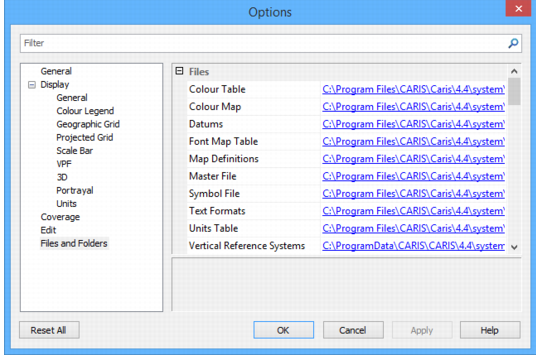
Default files can be substituted with user-defined custom files that can contain additional or extended information. The application can then be pointed to these custom files.
System and module support files must never be directly modified. Copy these files to another location and modify the copies. Then, point the application to these files through the Options dialog box or environment file. For more information on modifying default settings, see Environment Settings |
The following table lists files or folders that can be copied and customized with new or extended information.
Files/Folder | Component | Description |
Catalogue control file | System | The catalogue control file lists products along with the dictionaries and profiles that are associated with each product. The default file is See Catalogues for more information. |
Portrayal control file | System | The portrayal control file lists various portrayals along the files that make up each portrayal. Portrayals control how features are displayed. The default file is For more information about the portrayal control file, see Portrayals. For more information about portrayal files. see Portrayal Files |
Coordinate reference system | System | Files that define the coordinate reference systems. These also include datums and ellipsoids. For more information on these files, see Coordinate Reference Systems |
Utilities | System | The Utilities folder contains For more information on the utilities file, see CARIS help. |
Validation | Modules | The Validation folder contains quality control files for primarily checking data structure and logical consistency in S-57, VPF, and geometric data. Tests can be developed for additional file types. Default files are found in
Note that the quality assurance tests for each module are different. For more information on quality control files, see Quality Control |
Rules | Modules | The Rules folder contains mapping files for converting file types or features from one format to another. Default files are found in
Note that mapping files for each module are different. For more information on mapping, see Mapping |
Product information files | Modules | The Default files are located in
For more information on product information files, see individual module support file guides. |