 CARIS HPD Paper Chart Editor
 CARIS HPD Paper Chart Editor
CARIS Paper Chart Composer
CARIS HPD Publications Module
Paper Chart Editor and Paper Chart Composer
Object Browser is a window in Paper Chart Editor and Paper Chart Composer that displays information about an Atlas. It will be displayed automatically if an atlas is created or opened. but is otherwise not visible.

Contents are listed in the Object Browser window as layers.
Search
If there are many layers, you can use the Search command to select a layer, as follows:
1. Type a name in the Search field.
2. Click the Forward or Back arrow buttons.
If the search matches a layer, the layer is selected.
Commands
Access commands in Object Browser by right-clicking on a layer and selecting a command from a pop-up menu. Commands are related to Atlas production. See the Paper Charts for a description of an atlases.
Some commands are only available for certain layers.
Command | Description |
|---|---|
Add Page | Insert a page into an Atlas (available only in parent layer). |
Export Atlas | Export an Atlas to a selected folder (available only in parent layer). |
Publish Atlas | Set the status of an Atlas to published (available only in parent layer). |
Insert Page | Add another page to the Atlas. |
Move Up | Move a selected page up. |
Move Down | Move a selected page down |
Add Chart to Page | Add a chart to an existing page. |
Export Atlas Page(s) | Export selected pages to PDF or TIFF files |
Start Page Numbering | Set the selected page to |
Open | Open a chart in PCE. |
Copy | Copy page information to XML format. |
Paste | Paste a page into an Atlas (available only in parent layer). |
Paste Special | Paste a page using an XSLT file (available only in parent layer). |
Delete | Remove a page from the booklet. |
Publications Module
The Object Browser in Publications Module shows the database connection and any open components such as pending notices, catalogues, and publications.
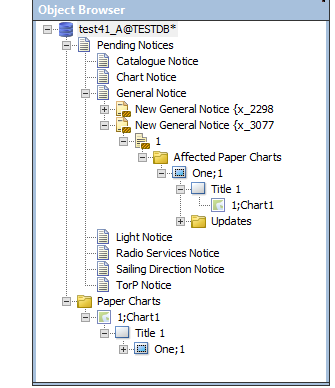
Right click on a layer and select from the pop-up menu. Commands will vary depending on which layer is selected.
• • • • • • • • • • | • • • • • • • • • • • |
Moving objects
You can move an object from one folder to another within the Object Browser. For example, you might need to move a chart notice from the Pending Notices folder to a Publication.
You can do this using the Add Objects to Section command or by dragging and dropping it within the Object Browser.
To drag and drop a section or object:
1. Select the object to be moved.
2. Press and hold the mouse button and drag the object to the new location.
If the object cannot be added to the location under the pointer, the point will change ( ).
).
3. Release the mouse button.
The selected object is in the new location.