 CARIS HPD Paper Chart Editor
 CARIS HPD Paper Chart Editor
This command is only available if the Raster Chart Module is enabled. |
Menu | Raster > Changes > Show Change Cells |
Tool |
|
Menu | Raster > Changes > First Cell |
Tool |
|
Key | Ctrl+Shift+Left |
Menu | Raster > Changes > Next Cell |
Tool |
|
Key | Ctrl+Right |
Menu | Raster > Changes > Previous Cell |
Tool |
|
Key | Ctrl+Left |
Menu | Raster > Changes > Last Cell |
Tool |
|
Key | Ctrl+Shift+Right |
Display rectangular cells that highlight areas where changes are made in proposed charts or layers.
A proposed chart is a chart that is currently being edited. A reference chart is a previous version of a chart to which a proposed chart can be compared.
Change cells are shown below.
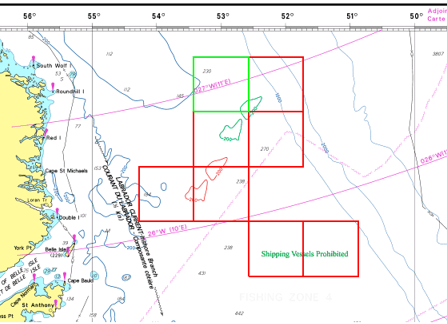
Change cells can be applied to an entire raster or to selected raster layers. You can navigate the change cells using the highlight commands. See the table below.
Command | Description |
|---|---|
First Cell | Highlight the top-left change cell. |
Next Cell | Highlight the cell next to the currently highlighted one. |
Previous Cell | Highlight the previously selected cell. |
Last Cell | Select the bottom-right cell. |
If no changes have been made to the chart, a message informs you that “There are no raster changes” and no change cells are drawn.
Until the Compare Chart or Compare Files commands are run, additional commands for viewing changes cannot be activated.
Related commands
• • |
Procedure
1. Select the Raster Set layer or a single raster layer.
2. Select the Show Raster Change Cells command.
Change cells are displayed in the raster layers.
3. [Optional] Navigate change cells using the above highlighting commands.
4. To turn off cells, select the Show Raster Change Cells command again.


