CARIS HPD Source Editor
 CARIS HPD Source Editor
Menu | File > Open > HPD Database View |
Open a previous workspace to compare changes with the current workspace.
The workspace is read-only and cannot be modified. You do not need to have a workspace already open to use this command.
Related commands:
• | • |
Interface
Option | Description |
|---|---|
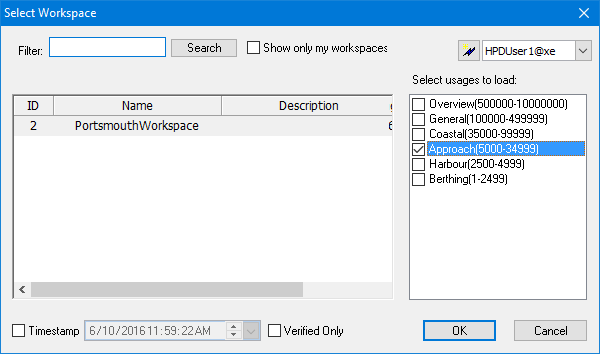
Filter | List only workspaces containing the specified string. You can use a wildcard character (%) to search for a partial match. For example: • • • |
Show only my workspaces | On: Only your workspaces will be listed. Off: All available workspaces will be listed. |
Connect | Connect as a different user. 1. Click connect ( 2. Log into the database. Switch between users: 1. Select from the list. |
[List of workspaces] | List of workspaces that meet your filter criteria. The geographic extents of the workspace are listed using the current display units settings. |
Select usages to load | List of usages in the selected workspace. Select one or more usages. |
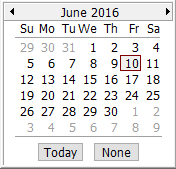
Timestamp | On: The data is displayed as it was at the selected date and time. Select a date and time using the up and down arrows or click the down arrow to use a calendar. Off: Current data will be displayed. |
Verified Only | On: Only verified data in the selected workspace will be displayed. Off: Data in the selected workspace will be displayed regardless of status. |
Procedure
1. Select the Open Database View command.
The database dialog box is displayed.
2. Type your Username and Password or enable Use Windows credentials.
The Select Workspace dialog box is displayed. Define any necessary filters.
3. Select a workspace.
4. Set any other necessary options.
5. Click OK.
The Select Project dialog box is displayed (see Open HPD Project). This lists only projects associated with the workspace.
The workspace is drawn in the Display window.
 ).
).