Attributes are characteristics of an object. Examples of attributes can be a unique identifier, regional information, authorities responsible for the notice, and so on. Attributes are the “who, what, why, where and how” of the object.
There are eight attribute types.
Attribute Type | Description |
|---|---|
Choice | A list of values. |
Complex | A multi-level attribute that contains other attributes. The complex attribute is described below. |
Date | The selected year/month/day. It is always shown in |
Float | Real numbers that can contain a fractional part. |
Integer | Real numbers that do not contain a fractional part. |
Point | Geometry attribute that contains longitude and latitude. |
Reference | Internal attributes that are read-only. |
String | Alphanumeric combination of characters. |
The catalogue contains some read-only base attributes. These attributes are associated with base objects and cannot be modified. When a version of the base object is created, the base attributes are automatically linked with the object.
However, attributes can be created without reference to a base attribute. This gives you versatility in determining what attributes are contained with an object.
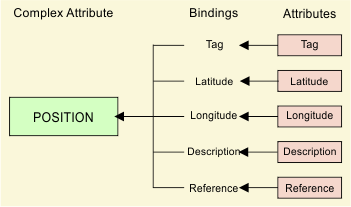
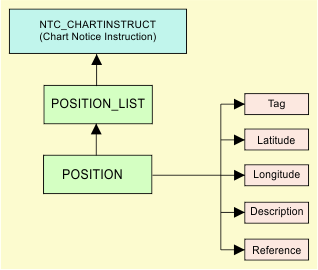
Some attributes are complex (multi-level). An example of complex attribute is shown below:
An instruction object contains a POSITION_LIST attribute. POSITION_LIST contains an attribute named POSITION. POSITION is a complex attribute that contains other attributes such as description, latitude, and longitude.
Attributes are associated to objects through bindings. A binding is represented by a unique name that identifies the relationship between an object and an attribute. An example of attribute bindings are shown by the graphic below.
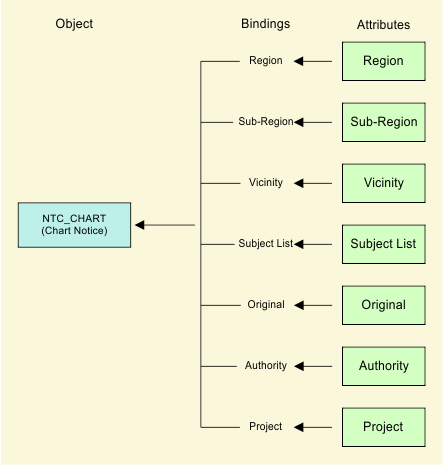
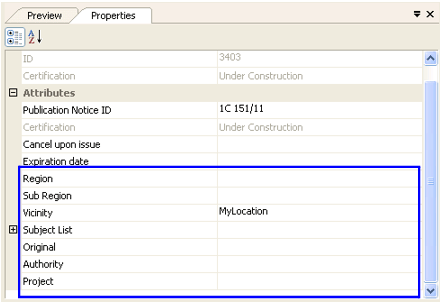
In the above example, seven attributes are linked to the Chart Notice object. For example, the Region attribute is linked to the Chart Notice through the “Region” binding.
Note that some base attribute bindings are associated to base objects. These bindings cannot be modified or removed.
You can view bindings by expanding the Objects layer in Object Browser.
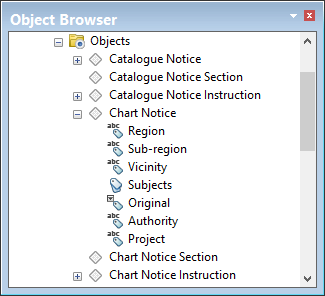
After a chart notice is selected in the Object Browser, the attributes are displayed in the Properties window.
Attribute bindings can also be applied to complex attributes. The following image shows the bindings used to link attributes to the POSITION attribute.