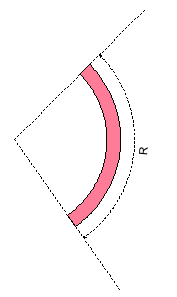
Dynamic cartography can be applied to customize the following sector light graphic elements:
• Solid or dashed limit lines
• Arm length
• Light sector colour
• Sector arc style. location and annotations
• Sector band width and location
• Annotation location.
This example shows how to interactively link a geographic feature (LIGHTS) and a cartographic feature (sector) and then edit the cartographic feature.
Prerequisite: A LIGHTS feature with a sector defined.
The following attributes are set.
Attribute | Value |
|---|---|
COLOUR | 3 |
HEIGHT | 6.1 |
LITCHR | 2 |
SECTR1 | 225 |
SECTR2 | 325 |
SIGGRP | (1) |
SIGPER | 2.5 |
VALNMR | 4 |
The sector light, similar to the one below, is displayed.
1. Select the Create Point Feature command.
The Select Object Acronym dialog box is displayed.
2. Select Cartographic from the Class Type Filter list, and select sector from the Object Acronym list.
3. Click OK.
4. In the Attributes window, enter attributes as shown in the table below.
Attribute | Acronym | Value |
|---|---|---|
Length of sector one | lenone | 40 |
Length of sector 2 | lentwo | 40 |
Limit pattern | limpat | 2 |
Colour band inner radius | bandir | 30 |
Colour band outer radius | bandor | 33 |
Arc distance | arcdis | 40 |
Annotation distance | anndis | 42 |
Light flare | lflare | 1 |
Light flare angle | flarea | 45 |
5. Press <S> to snap the sector feature to the LIGHTS feature.
6. Select both the LIGHTS and sector features,. Make sure that the LIGHTS feature is superselected.
7. Select the Create Annotation Link command.
An annotation link is created between the sector feature and the LIGHTS feature. The cartographic feature display overrides the LIGHTS feature display. The sector feature is drawn according to templates in DCLIGHTS.xsl.
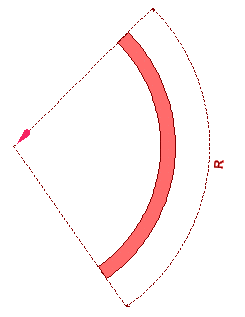
8. Select the sector feature, and then select the Edit Cartography command.
The sector feature is in edit mode. Handles are displayed on individual elements of the feature.

9. Use the mouse to drag a handle to a new position.
For example, a colour band is expanded by moving the outer edge.

10. When finished, select the Edit Cartography command a second time.