 CARIS HPD Product Editor
 CARIS HPD Product Editor
Menu | Tools > Compare Product to Source |
Tool |
|
Check the source for changes to the data that could be applied to the product. Only verified source features are checked.
Only the source usage from which the product was made is considered. In addition, if a feature was modified more than once, only the most recent verified version is used.
For tiled raster products, any tile containing changes is selected in the Display window. No layers are added to the product.
For other products, change layers are added to the Layers window. Any of the following changes could be included:
Change | Description |
|---|---|
Updated | Existing features that have modified geometry or changed attributes. or that were superseded by new features. |
Deleted | Features that were deleted from the source. |
New | New features added to the source |
Removed by Filter | Features that were in a product created from a filtered layer but are now excluded because changes in source puts the features outside filter parameters. |
Markers | Notice markers in source with an Accepted status are listed for information purposes only. |
You can use Set Override Colour in the Properties window to make it more obvious which change layer a feature belongs to. For example, all features in the New layer could be shown in green and features in the Deleted layer could be shown in red.
The Compare Product to Source command can be modified to only list changes to specific features in a product. This is done using the ALLOWSPECIFICCPSUPDATE server API procedure. If this procedure is applied to a product and the Compare Product to Source command is run, the following message is displayed in the Output window:
“Only updates to the features specified with the ’ALLOWSPECIFICCPSUPATDE’ API call are reported for this product.” |
See the HPD Server API guide for more information.
Procedure: Tiled Raster products
1. Open the most recent version of the product.
2. Make the Product Specific layer active.
3. Select the Compare Product to Source command.
Any tiles containing changes are selected.
4. [Optional] Apply the changes.
See Apply Changes to Tiled Raster Product for more information.
Procedure: Other products
1. Open the most recent version of the product.
2. Make one of the data layers active.
3. Select the Compare Product to Source command.
If no changes have occurred in the source, a message tells you that there are “No source changes relevant to this product.”
If changes have occurred in the source, new layers are created
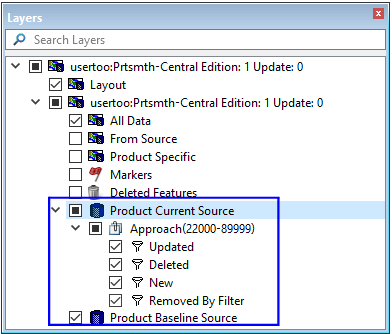
If ALLOWSPECIFICCPSUPDATE is set, an exclamation mark is displayed beside the Product Current Source layer.
4. Select a Product Current Source layer.
5. Select the appropriate features.
6. Apply the changes.
See Apply Changes in Source to Product for more information.
