Menu | Tools > Editors > Swath > Swath Editor > Filters
Tools > Editors > Single Beam > Single Beam Editor > Filters |
Menu | Tools > HIPS and SIPS > Data Filters > Swath
Tools > HIPS and SIPS > Data Filters > Single Beam |
Tool |
|
Menu | Tools > Editors > Swath > Swath Editor > Filters
Tools > Editors > Single Beam > Single Beam Editor > Filters |
Menu | Tools > HIPS and SIPS > Data Filters > Swath
Tools > HIPS and SIPS > Data Filters > Single Beam |
Tool |
|
Filter swath or single beam data using various filters including IHO filtering options to update lines.
Filtering of Observed Depths can be applied in two ways:
• When data is open in either Swath or Single Beam Editor, the filtering functions are activated from the editor menu or from the Filter Observed Depths tool button. In this case, the Filter Observed Depths dialog box will include the option to apply the filter to the selected line or to the data visible in the Plan View.
• If these editors are not open, the Filter Observed Depths filters can be applied from the HIPS and SIPS > Data Filters command or tool button to filter open swath data.
Related commands:
Interface
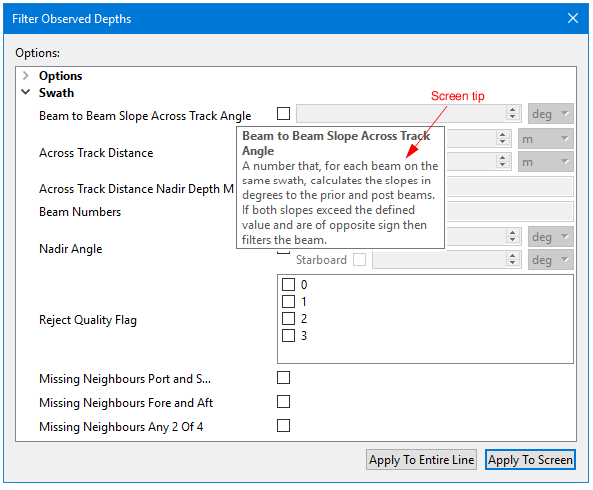
The Filter Observed Depths dialog box is used for Swath and Single Beam filtering. The image below displays the dialog box as opened from Swath Editor.
Hover the cursor over a field name to see a short description of the field function in a screen tip.
Procedure
1. Select a track line.
2. Open Swath or Single Beam editor.
3. Select the Filter command.
4. Enable the Accept check box to filter in Accepted data. Otherwise, all filtered data will be rejected.
5. [Optional] Set options for Protective Radius.
6. [Optional] Set IHO Order options. If S-57 User Defined is chosen, enable the IHO Limits and IHO Horizontal Distance Limits check box, and define values.
7. [Optional] Enable the Filter Data check box and set values in the Minimum and Maximum fields for a range of depths to which filtering will be applied.
8. [Optional] Enable the Beam to Beam Slope include Rejected to include previously rejected soundings when recalculating slopes during multiple runs of the filter.
9. Set options specific to Swath or Single Beam.
10. Select Apply to Entire Line or Apply To Screen to apply filters to the currently selected line or to the data that is visible in the Plan View.
Alternatively:
1. Select a line or lines in the Display window.
2. Select the Filter Observed Depths command.
3. In the dialog box, select from the Input Source list.
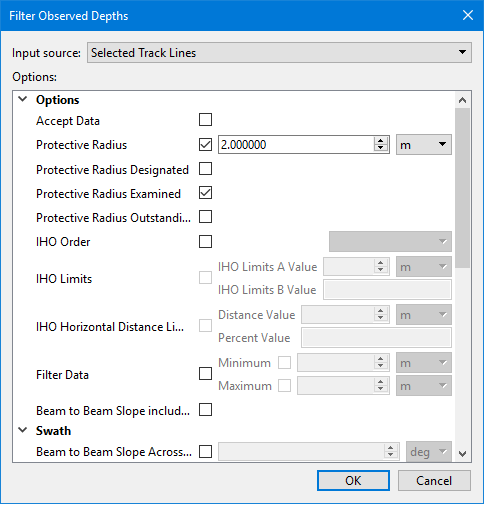
4. Set options as listed above.
5. Click OK to apply filters.
 On the single Beam and Swath Editor toolbars