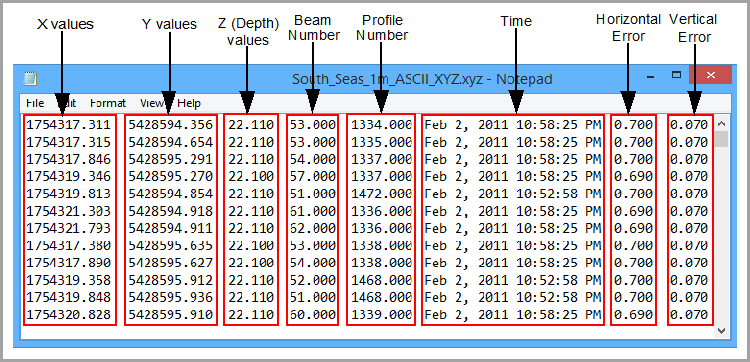
The following is an example of the data layout in an ASCII XYZ file.
Looking at the layout of data in the ASCII file, you can use the ASCII Info File Editor to set the following properties in a format information file:
• Skipped Lines: The number of lines in the ASCII file to be skipped when interpreting the data. This field is used if the ASCII file contains header information that should not be included in the data that makes up the surface during import. There is no heading or metadata information in the data file above; the data starts at the very top of the file, so the attribute value for "SkipLines" is ‘0’.
<cif:SkipLines>0</cif:SkipLines> |
• Delimiter: The delimiter (separator) value between each attribute value in the source data file. The example below has a comma for the "Delimiter" value.
<cif:Delimiter>,</cif:Delimiter> |
• Type: The type of the format information file (Elevation or Navigation). This property is for information purposes only and cannot be changed.
<cif:Type>Elevation</cif:Type> |
• Column Name: The heading to assign to the attribute column. This name will be assigned to the data during import and used for the band name in the resulting surface. Default values are available for this field based on the type of format information file. For an elevation file, "DEPTH_TPU" and "POS_TPU" are provided. For a navigation file, "DatagramTime" is provided.
<cif:AttributeName>Mean</cif:AttributeName> |
• Column Index: The column index number of the currently selected data. Each attribute in the source data is assigned to a column and indexed with a number starting at 0. This column contains all characters that make up the values for that attribute.
<cif:Index>0</cif:Index> |
• Column Multiplier: The multiplier values used to scale data during import, particularly X and Y coordinates and elevations. Coordinates need to be in the same unit as expected for the coordinate reference system (CRS) specified for the input. If the ASCII file contains coordinates and elevations in feet, for example, but the input CRS is defined as having coordinates and elevations in metres, it is necessary to apply a scaling like 0.3048 to both X and Y columns to have the data be positioned correctly and to the Z column for correct elevation values.
Any number is accepted for this value and a different scale can be specified for each column. If no scaling is required, leave the default 1.0. In the example below, the position and depth values do not have to be scaled before importing, so the "Multiplier" values for each column are "1.0".
<cif:Column> <cif:AttributeName>X</cif:AttributeName> <cif:Multiplier>1.0</cif:Multiplier> ...
|
<cif:Column> <cif:AttributeName>Y</cif:AttributeName> <cif:Multiplier>1.0</cif:Multiplier> ...
|
<cif:Column> <cif:AttributeName>Z</cif:AttributeName> <cif:Multiplier>1.0</cif:Multiplier> ...
|
• Data Type: The type of data in the selected attribute column, such as FLOAT or INT. This property cannot be changed for the default X, Y, and Z columns
<cif:DataType>DOUBLE</cif:DataType> |
• Coordinate Format: The format of the coordinates for the file. This property is only available for the X and Y columns. The options include:
• DecimalDegrees
• DegreesDecimalMinutes
• DegreesMinutesSeconds
• Ground
<cif:CoordinateFormat>Ground</cif:CoordinateFormat> |
• Axis Direction: The convention for the positive Z-axis.
<cif:Orientation>up</cif:Orientation> |
• Unit: The unit of measure of the data. In the ASCII Info File Editor, the available options in this field are based on the selected Unit Type. The Unit Type field identifies the format of the data for which units are to be selected. For example, if the Unit Type is Length, the Units field contains options such as Centimetres and Inches.
<cif:Unit>m</cif:Unit> |
Format information files created in the ASCII Info File Editor will be validated against an XSD schema file when they are saved. The schema file can be found at:
C:\Program Files\CARIS\BASE Editor\<version>\modules\BASE Editor\support\Schemas\CARIS\cif\2.1
If any settings in the file do not conform to the standards defined in the schema, an error message will be displayed.