Menu | Tools > HIPS Data Filters > Apply > Attitude |
Tool |
|
Menu | Tools > HIPS Data Filters > Apply > Attitude |
Tool |
|
The Attitude filter is used to reject attitude that falls outside of defined boundaries. Use the Filter HIPS Attitude dialog box to select the sensor attitude data to filter, enable filtering and smoothing functions, and set the type of, and parameters for, filtering, and then apply filtering.
The filter types are:
• Moving Average calculates a mean value for each data point, by calculating an average sensor value over a data window of set size. The window is defined either by a number of data points or by number of seconds, centred on a point. The average value for all of the values in the window is calculated and will be given to the central point.
• Fast Fourier applies a common wave-smoothing algorithm to a data point. Fast Fourier performs a low-pass filter on the selected sensor. You select window size in either points or seconds.This value is converted into seconds and then inverted to become the cut-off frequency.
The filter window size is defined either by number of points or number of seconds. When the filter type is set to Moving Average, the window size is used for averaging the data.
When the filter type is set to Fast Fourier, the window size is used to derive the cut-off frequency that is applied to all data.
Related commands:
Interface
Set and run filters from the Filter HIPS Attitude dialog box.
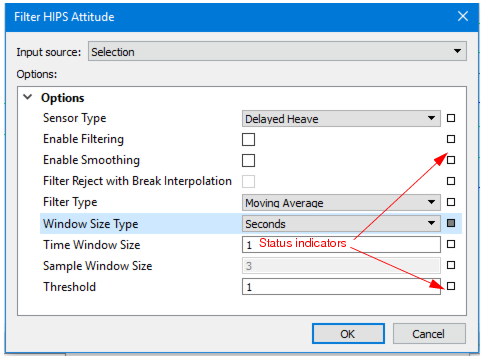
The fields in the dialog box are set to default values. If a setting is changed from the default, the status indicator box for the field changes to grey. Defaults can be restored by clicking on the indicator box and selecting “Reset”.
Option | Description |
Input Source | Selection is set if track lines are selected before opening the filter dialog box. This can be set to apply to All Track Lines. |
Options | General options for the Attitude filter. If you hover the cursor over the option name, a short description pops up. |
Sensor Type | Select the type of sensor data to filter |
Enable Filtering | Select check box to enable filtering of sensor data. |
Enable Smoothing | Select check box to enable smoothing of sensor data. The Smooth function is used to even out localized variability. |
Filter Reject with Break Interpolation | By default, interpolation is applied to gaps that are created when data is rejected during filtering, so that soundings with the same time stamp as the rejected data are not also flagged as rejected. If the Reject with Break Interpolation check box is selected, no interpolation of the gaps will take place and soundings associated with the rejected sensor data to also be rejected.. |
Filter Type | Set the type of filtering to apply. Moving average is selected by default. |
Window Size Type | If set to Seconds, the filter window will be determined by a value in seconds, as set in the Time Window Size field. If set to Points the time range as a number of points (samples) for the filter window must be set in the Sample Window Size field. The default value is Points. |
Time Window Size | Set the number of seconds. |
Sample Window Size | Set the number of points. |
Threshold | Set a number specifying the multiple of the standard deviation, as sigma, for the filter or smooth cut-off. The default value is 1. |
Procedure
1. Select a track line.
2. Select the Apply Attitude filter command.
3. Set the parameters as described.
4. Click OK.
